GPU overheating is a common issue for anyone training or running Large Language Models (LLMs) locally. Unlike gaming, AI workloads keep your hardware at maximum capacity for extended periods. If your system is not properly configured, this sustained heat can lead to thermal throttling or hardware failure.
Why AI Training is Harder on GPUs than Gaming
AI training and inference tasks differ from traditional graphics rendering in how they use hardware.
- Continuous Maximum Load: In gaming, the GPU load fluctuates based on the scene. During LLM training, the GPU cores and Tensor cores stay at nearly 100% utilization from the start to end.
- VRAM Intensity: LLMs require massive amounts of Video RAM (VRAM). The memory chips often generate more heat than the GPU core itself. Even if your core temperature looks safe, your memory junction temperature might be hitting dangerous levels.
- 2026 Hardware Density: Newer architectures come with higher compute density. While more efficient, they pack more transistors into smaller spaces, leading to higher heat concentration per square inch.
Key Symptoms of Overheating
It is important to recognize the signs of heat stress before the hardware sustains damage:
- Thermal Throttling: The GPU automatically lowers its clock speed to reduce heat. You will notice a drop in tokens per second (TPS) or an increase in “time per epoch” during training.
- Driver Crashes: The screen may flicker or go black, and the training script will fail with an “Out of Memory” or “Device Lost” error. This is often the result of the voltage regulator modules (VRMs) overheating.
- Maximum Fan Speed: If your fans stay at 100% and the noise level is consistently high, the cooling system is struggling to keep up with the thermal output.
5 Ways to Fix GPU Overheating
1. Power Limiting
This is the most effective way to reduce heat. By capping the power consumption, you can lower temperatures by 10–20°C while only losing about 5–10% in processing speed.
- Windows: Use MSI Afterburner to slide the “Power Limit” to 80%.
- Linux: Use the command sudo nvidia-smi -pl [Wattage] (e.g., sudo nvidia-smi -pl 300 for a 450W card).
2. Undervolting
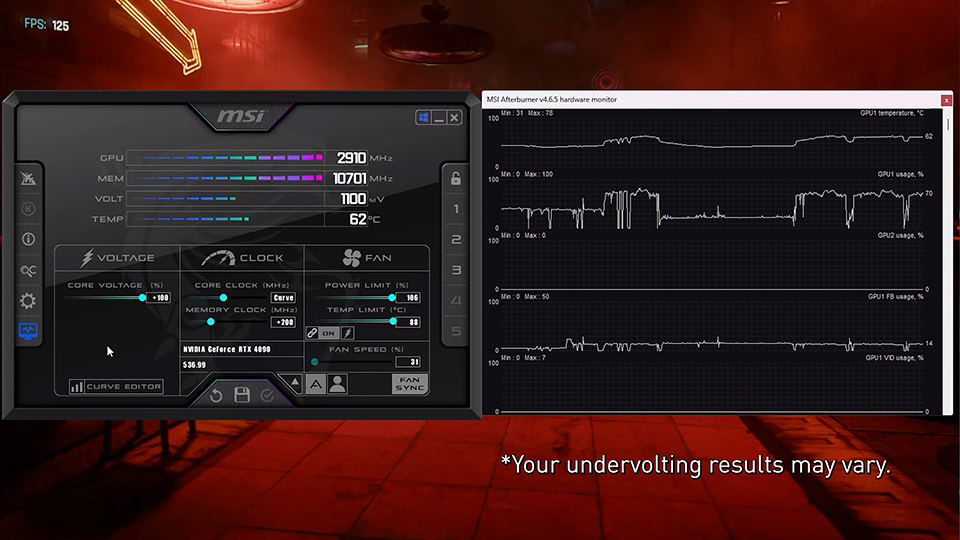
Undervolting involves reducing the voltage supplied to the GPU while maintaining the same clock speeds. This reduces power consumption and heat without sacrificing performance. This requires using a voltage-frequency curve editor (like the one in MSI Afterburner) to find the “sweet spot” where the card remains stable at lower voltages.
3. Airflow and Case Orientation
Proper physical placement of the hardware is important:
- Case Pressure: Make sure that you have more intake fans than exhaust fans to create positive pressure, to prevent dust buildup.
- GPU Mounting: Avoid vertical mounts if the GPU fans are pressed against the glass side panel. This restricts air intake.
- Spacing: In multi-GPU setups, leave at least one empty PCIe slot between cards to allow the fans to pull in fresh air.
4. Thermal Pad Replacement
Many consumer GPUs come with low-quality thermal pads on the VRAM. Replacing these with high-conductivity pads (rated 12.8 W/mK or higher) can drop memory temperatures. However, do keep in mind that this is a technical process that involves opening the card and may void the warranty.
5. Using Quantized Models
Reducing the precision of the model (quantization) reduces the VRAM footprint. Running a model in 4-bit or 8-bit quantization (using GGUF or EXL2 formats). It requires less memory bandwidth and generates less heat compared to running the model in full 16-bit precision.
Recommended Cooling Hardware for 2026
If software fixes are not enough, you have no choise but to consider hardware upgrades:
- Static Pressure Fans: Fans designed for radiators (like the Noctua NF-A12 series) are better at pushing air through dense GPU heatsinks.
- Hybrid Cooling: Some GPUs now come with built-in All-In-One (AIO) liquid coolers. These move the heat directly to a radiator, keeping the internal case temperature lower.
- External Blowers: For workstations with 3 or 4 GPUs, blower-style cards are preferred because they exhaust hot air out of the back of the case rather than recirculating it inside.
FAQs
Keep your GPU core under 80°C and VRAM under 95°C. Staying below these limits prevents thermal throttling and keeps performance steady.
Yes, but use a cooling pad and a hard surface. You must apply a power limit to prevent the compact hardware from hitting dangerous heat levels.
Sustained high heat can wear out fans and thermal paste faster. While GPUs have safety shut-offs, keeping them cool helps your hardware last much longer.