If you have tried to train a machine learning model or generate images with Stable Diffusion, then you must be familiar with the “Out of Memory” (OOM) error. Until now, running out of Video RAM (VRAM) meant an instant crash. However, now NVIDIA has introduced a safety net called the CUDA Sysmem Fallback Policy, which prevents crashes. But at the same time it comes with a big catch, and that is “performance speed”. So in this article i will explain what CUDA fallback is, why your PC might feel sluggish during heavy AI tasks, how to manage it, and more.
What is CUDA Fallback?
The CUDA Fallback, also known as the CUDA Sysmem Fallback Policy, is a feature in NVIDIA drivers that allows GPU memory to spill over to system RAM when VRAM runs out, and avoid crashes.
Our GPUs have a fixed amount of dedicated VRAM, like 8GB, 12GB, or 24GB. So when an application tries to load a model that exceeds that limit, the GPU has nowhere to put the data.
Understanding the “Out of Memory” (OOM) Crash
In the past, when our VRAM was full and an application requested even just 10MB of extra space, the driver would show an “Out-of-Memory” error. As a result, the render fails, or the Python script terminates. It was quite frustrating, and the only option was to upgrade the hardware itself.
How the CUDA Sysmem Fallback Policy Works
But now with the introduction of the Sysmem Fallback Policy, the driver does not crash even when the VRAM gets full. Insted it offloads the excessive data onto the computer’s System Memory (RAM).
This allows the application to keep running, but at the cost of performance. System RAM communicates with the GPU over the PCIe bus, which is slower than the GPU’s internal VRAM. So you will be able to finish the task, but the task that would have been completed within seconds might take minutes in fallback mode.
Common Causes of CUDA Fallback
Usually, the Fallback mode is activated when the application demands more memory than your GPU physically possesses. Here are some common reasons of CUDA Fallback:
- Generative AI Models: Running Large Language Models (LLMs) or Stable Diffusion with batch sizes too large for your card.
- 4K/8K Video Editing: Rendering heavily layered timelines in DaVinci Resolve or Premiere Pro.
- Unoptimized 3D Renders: Scenes in Blender or Redshift with massive uncompressed textures.
- Background Apps: Having a game, a browser with hardware acceleration, and a creative tool open simultaneously.
How to Check CUDA Version on Your System
It’s important to know your CUDA version to troubleshoot fallback issues or for compatibility with new software. Basically, there are two “versions” to look for: the version your driver supports and the version you have installed. Here’s how:
For Windows & Linux
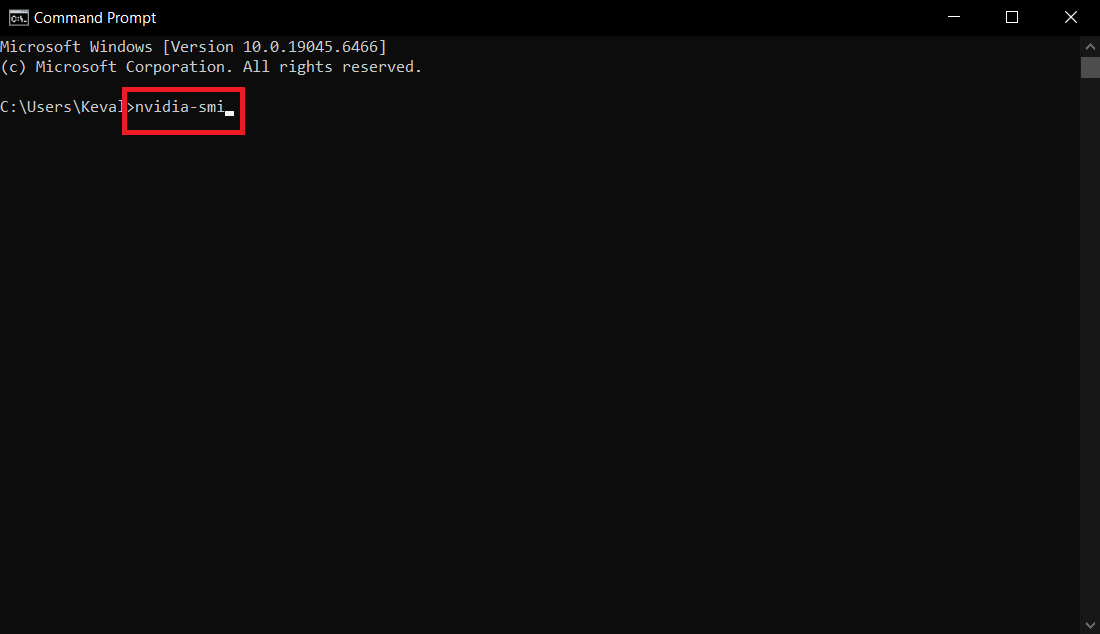
1. Open Command Prompt on Windows or Terminal on Linux.
2. Type “nvidia-smi”.
3. Look at the top right of the chart for “CUDA Version”.
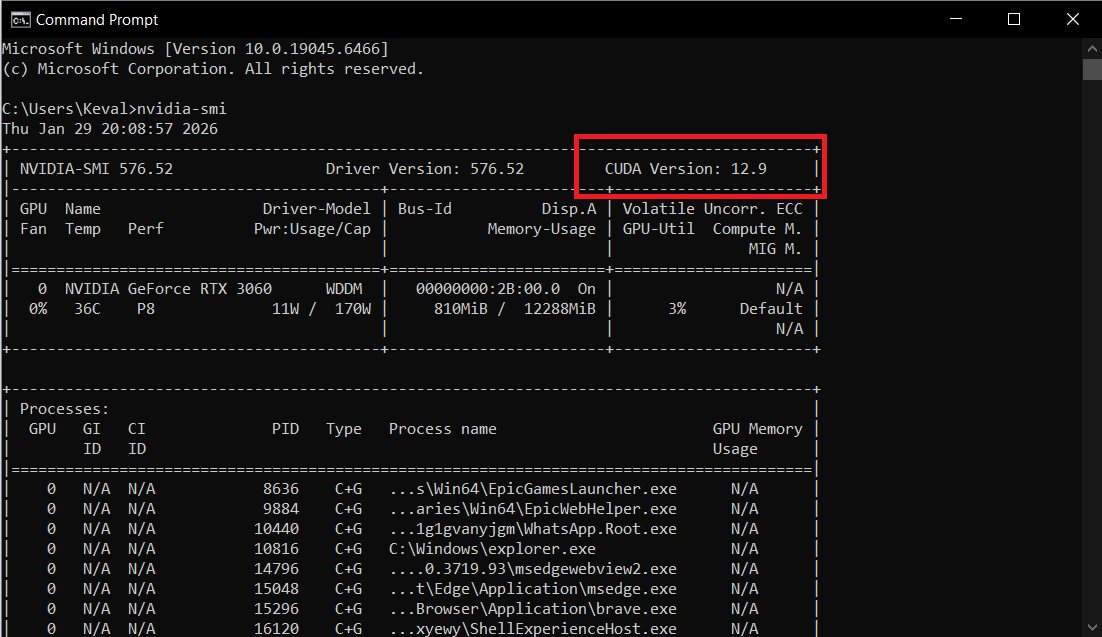
4. This indicates the maximum CUDA version your current driver supports.
To check the specifically installed CUDA Toolkit version:
- In the same terminal, type “nvcc –version”.
- This will return the exact build version of the CUDA compiler installed on your system.
How to Fix or Avoid CUDA Fallback
If you want your application to crash than run slowly, or if you want the performance back, you can disable the CUDA Fallback on your system. Here’s how:
- Open the NVIDIA Control Panel.
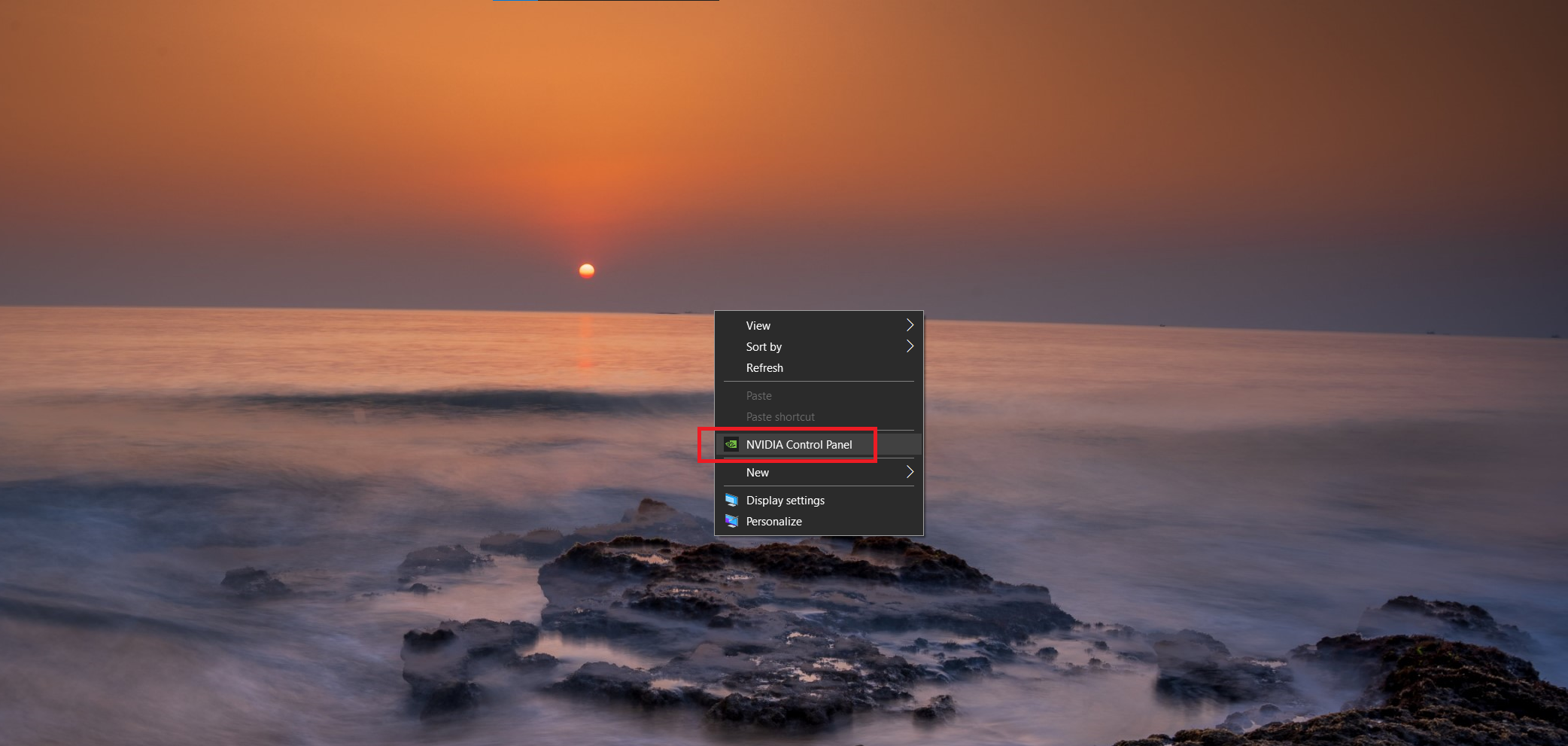
- Go to Manage 3D Settings.
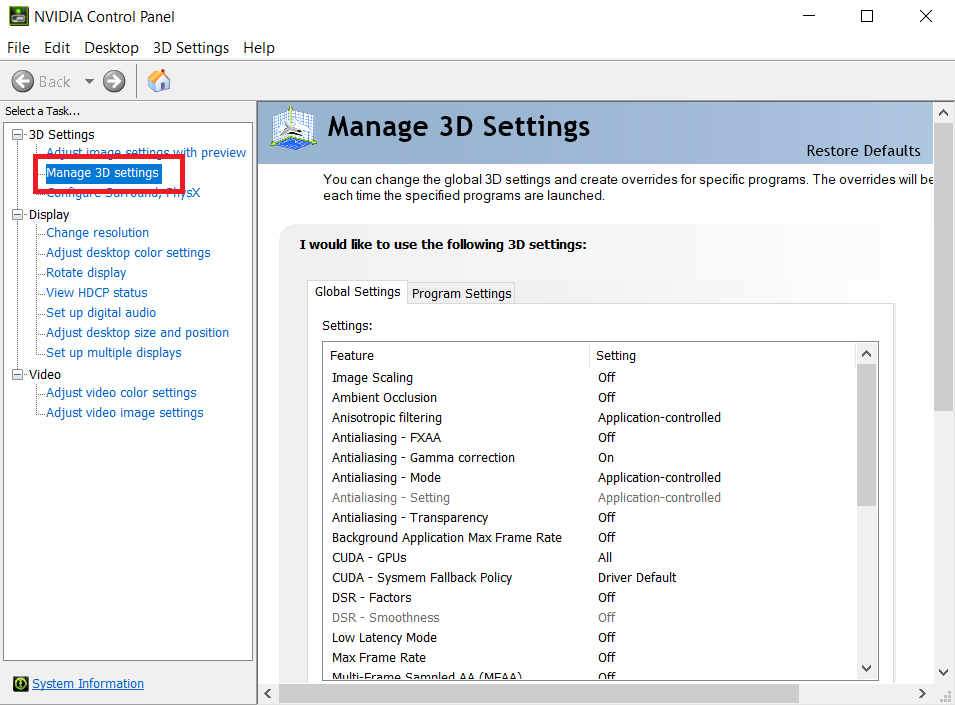
- Scroll down to the setting labeled “CUDA – Sysmem Fallback Policy”.
- Change the setting from “Driver Default” to “Prefer No Sysmem Fallback”.
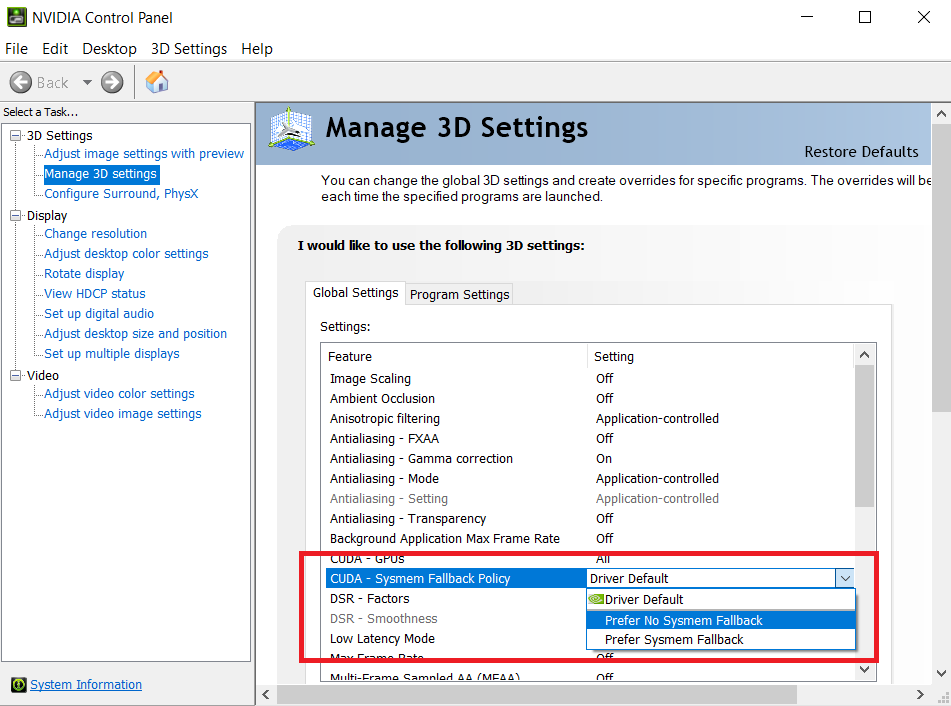
Note: Once disabled, your applications will return to the old behavior: if you exceed VRAM, they will crash immediately with an OOM error.
How to Know If Your Application Is Using CUDA or Fallback Mode
The simplest way to know whether the fallback mode is activated or not is by monitoring system resources while running the heavy task.
- Open Task Manager (Ctrl + Shift + Esc) and go to the Performance tab.
- Select your GPU.
- Look at the memory charts. You will see two graphs: Dedicated GPU Memory and Shared GPU Memory.
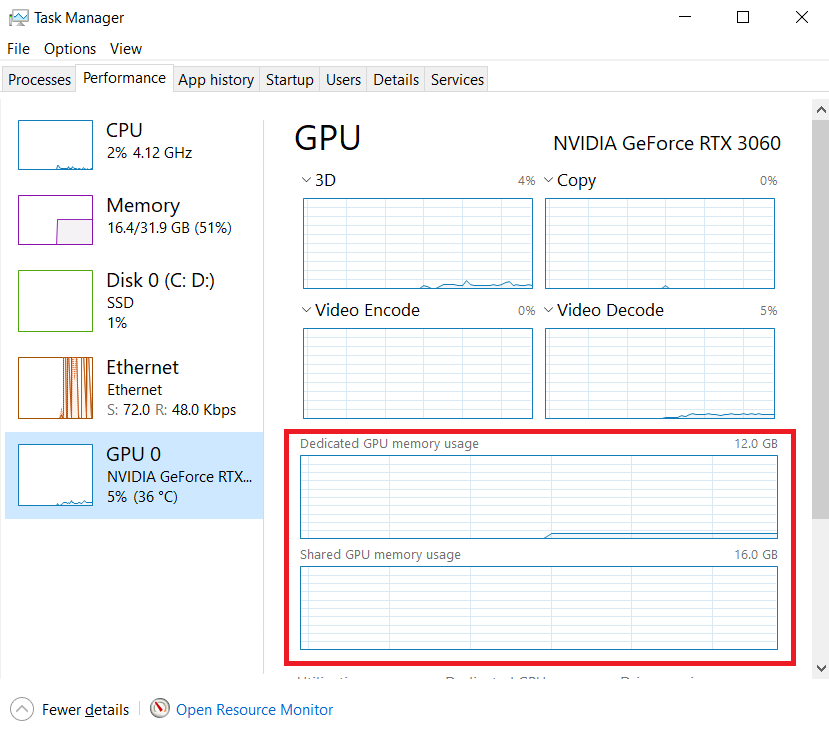
- Normal Operation: Dedicated memory is high; Shared memory is near zero.
- Fallback Mode: Dedicated memory is 100% full, and Shared GPU Memory usage is rising.
If you see “Shared GPU Memory” being used, your GPU is borrowing slow system RAM, confirming that fallback mode is active.
FAQs
Open NVIDIA Control Panel > Manage 3D Settings > CUDA – Sysmem Fallback Policy > Select “Prefer No Sysmem Fallback” > Apply.
System fallback allows your GPU to use system RAM when VRAM is full, preventing crashes.
CUDA stands for “Compute Unified Device Architecture,” NVIDIA’s parallel computing platform and API for GPU acceleration.