Yes, overclocking your GPU is normally considered a safe option to get some free performance boost. However, you have to make sure that adequate cooling and a reliable power supply are in place. And the final decision is always based on your specific hardware and performance requirements.
So you should overclock your GPU if you need that marginal FPS increase to reach that specific target. However, it’s a big NO if you are using a laptop where the airflow is usually limited. Apart from that, you should also avoid overclocking the GPU if you have a cheap or budget power supply, or if your computer struggles with high temperatures, even during standard workflows.
What Does Overclocking a GPU Actually Mean?
Overclocking is a process where the operating speed of your graphics card is increased manually beyond its manufacturer’s settings.
Graphics cards are sold with a base clock speed that provides stability for every unit produced. And by overcooking, the user is pushing the silicon slightly in order to extract the maximum performance potential that the manufacturer left on the table for safety margins.
Core Clock vs Memory Clock Explained
The GPU comes with two clock speeds that you can adjust. The core clock refers to the speed of the graphics processor itself, which manages the mathematical calculations needed to render Images. This also has the most meaningful impact on frame rates.
On the other hand, the memory clock refers to the speed of the VRAM (video RAM). It is used for textures and game assets to load and move more quickly.
How GPU Overclocking Works?
GPU overclocking works by telling the card to run faster cycles per second. This is usually done through software that communicates with the GPU driver. When you increase the clock speed, the card processes instructions faster.
However, do keep in mind that in order to maintain the stability at these higher speeds, the card can sometimes need more voltage, which can increase the electrical load and generate some heat inside the cabin.
Is GPU Overclocking Different from CPU Overclocking?
GPU overclocking is generally considered a simpler and safer option compared to CPU overclocking. Modern graphics cards have built-in safety mechanisms that automatically throttle performance or crash the driver if the card gets too hot or unstable, and rarely cause permanent damage. CPU overclocking, on the other hand, needs changes in the system BIOS and can prevent the computer from booting up entirely if done incorrectly.
Benefits of Overclocking Your GPU
Usually, the reason behind overclocking the GPU is to extract maximum performance from the hardware you already own. However, there are more benefits to overclocking your GPU. I have mentioned some of those advantages below:
Higher FPS in Games
The most direct benefit is an increase in frames per second (FPS). In gaming, a higher frame rate means smoother motion and lower input latency. Depending on the specific game and graphics card (“the silicon lottery”).
Better Performance in Rendering and Editing
No overclocking, the GPU is not only meant for gamers. Even if you are a content creator who uses GPU-accelerated software for video editing, 3D rendering, or even a machine learning task, you can see reduced times if you overclock your GPU.
Free Performance Boost Without Upgrading
Hardware upgrades have become quite expensive lately. So, the GPU can add some extra life to your already ageing graphics card. For example, if a new game releases and you are struggling to run smoothly on your current setup, a stable overclock can provide just enough extra power to your system to make the game at least playable.
Risks of Overclocking a GPU
While overclocking the GPU is quite safe today. It is still not 100% risk free. Because, after all, you are operating the hardware outside its factory-rated specifications, which can have consequences. I have compiled some of the major risks associated with overclocking the GPU below:
Increased Heat and Power Consumption
The moment you increase the clock speed and voltage on your system, the GPU have to draw more power from the power supply unit (PSU). And this energy is converted into heat. So if your computer case does not have proper airflow, or if the GPU cannot keep up, the card can run hotter and louder. Sometimes, in extreme situations, the heat can also affect other components inside the case.
System Instability and Crashes
The most common risk associated with overclocking the GPU is instability. If you push the clock speed too high and don’t have enough voltage, the GPU will make calculation errors. As a result, you might face games crashing or the screen freezing, or even the entire computer restarting.
Reduced GPU Lifespan
Theoretically, running any electronic component at higher temperatures and voltages speeds up the degradation process of that component through a process called electromigration. However, for an average user who applies a moderate overclock without touching the voltage settings, significantly, the reduction in lifespan is usually negligible.
Warranty Concerns
Now, technically, modifying the operation of your graphics card does void the warranty with the majority of manufacturers. But since software-based overclocking does not physically modify the card and resetting the software returns it to the stock levels, it becomes difficult for manufacturers to prove that a card was overclocked. Unless some physical damage occurred from extreme voltage adjustments.
Does Overclocking a GPU Really Increase FPS?
The effectiveness of overclocking varies depending on the specific application and the rest of your computer’s hardware.
Expected Performance Gains
You should manage your expectations. Overclocking rarely transforms a budget card into a beast. A realistic expectation for most modern cards is a 5% to 10% performance increase. In a game running at 60 FPS, this translates to an extra 3 to 6 frames per second.
When the FPS Boost Is Noticeable?
The boost is most noticeable when your GPU is the limiting factor in your system, known as being “GPU-bound.” This typically happens when playing visually demanding games at high resolutions. In these scenarios, every ounce of extra processing power directly translates to better performance.
When Overclocking Makes No Difference?
If your CPU is too slow to keep up with your graphics card (CPU bottleneck), overclocking the GPU will yield zero results. The GPU will simply wait faster for the CPU to send it instructions.
Is It Safe to Overclock Your GPU?
For most users using standard software tools, overclocking is safe. Modern GPUs have hard limits encoded in their BIOS to prevent users from accidentally destroying the hardware.
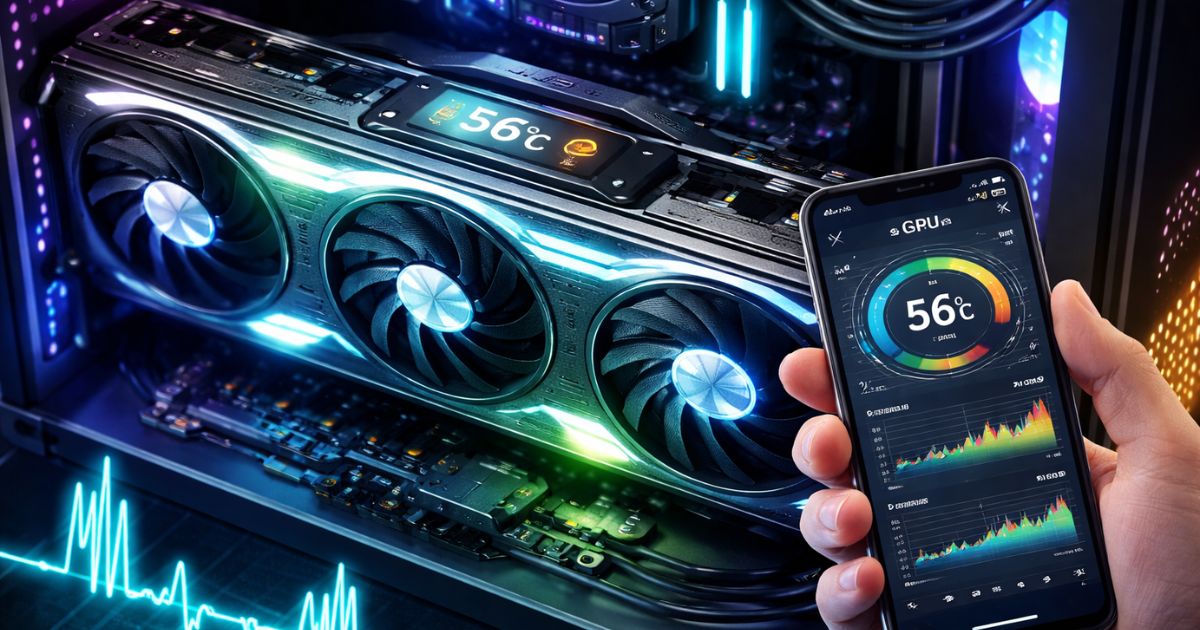
Temperature is your primary safety metric. Ideally, you want your GPU to stay under 85 degrees Celsius (185 degrees Fahrenheit) under full load. Most cards will automatically slow down (thermal throttle) if they hit roughly 90 degrees Celsius to protect themselves.
Voltage is the one setting that carries real risk. Increasing the “Core Voltage” can stabilize higher clock speeds, but it also causes a spike in heat and potential degradation. Beginners are strongly advised to leave voltage settings at default.
Your PC will tell you if you have gone too far. Common signs include “artifacts”, strange flashing colors, geometric shapes, or lines appearing on the screen. Other signs include the display driver crashing and recovering (screen goes black for a second, then returns) or the dreaded Blue Screen of Death. If you see these, your overclock is unstable.
When Should You Overclock Your GPU?
There are specific scenarios where the effort of overclocking is justified by the results. For example, in competitive shooters, input lag and frame consistency are important. Even if you already have high FPS, overclocking can help ensure that your 1% low FPS (the lowest frame rate drops you experience) remains high, keeping your aim consistent during chaotic moments.
Apart from that, if you have a high-refresh-rate monitor, you need your PC to output a high number of frames to match the monitor’s capability. So if your system is hovering around 130 FPS on a 144Hz monitor, a slight overclock can bridge that gap.
If you monitor your system usage and see your GPU is constantly at 99% or 100% usage while gaming, you are GPU-bottlenecked. In this situation, overclocking is highly effective because any additional speed you squeeze out of the card will directly result in better performance.
When You Should NOT Overclock Your GPU
Sometimes, overclocking creates more problems than it solves. Entry-level cards often come with small coolers that are designed only to handle stock speeds. They lack the thermal headroom to handle extra heat. Pushing these cards can lead to thermal throttling.
If your computer case has poor ventilation or you are using the default “blower-style” cooler that came with some older cards, overclocking is ill-advised. The heat will accumulate inside the case, potentially overheating your CPU and RAM as well.
How to Overclock a GPU Safely
The process is straightforward and involves trial and error.
Tools You’ll Need
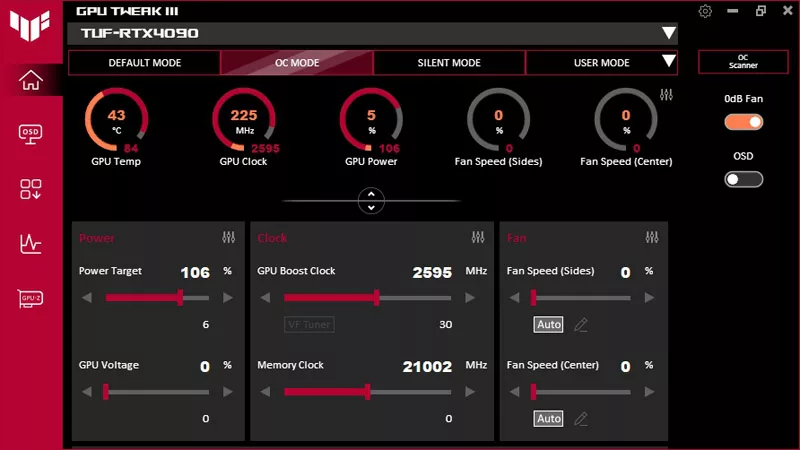
You will need two pieces of software. First, an overclocking utility like MSI Afterburner (which works on almost any brand of card). Second, a benchmarking tool like UNIGINE Heaven or 3DMark to stress-test the card and measure performance.
Step 1: Benchmark Your Current Performance
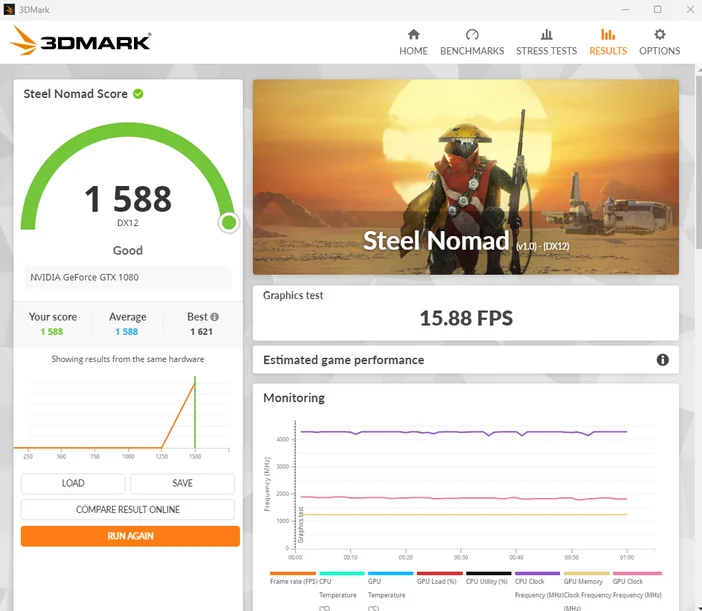
Run your benchmark software before changing any settings. Note down your score and average FPS. This establishes a baseline so you can see exactly how much performance you gain later.
Step 2: Increase Core Clock Gradually
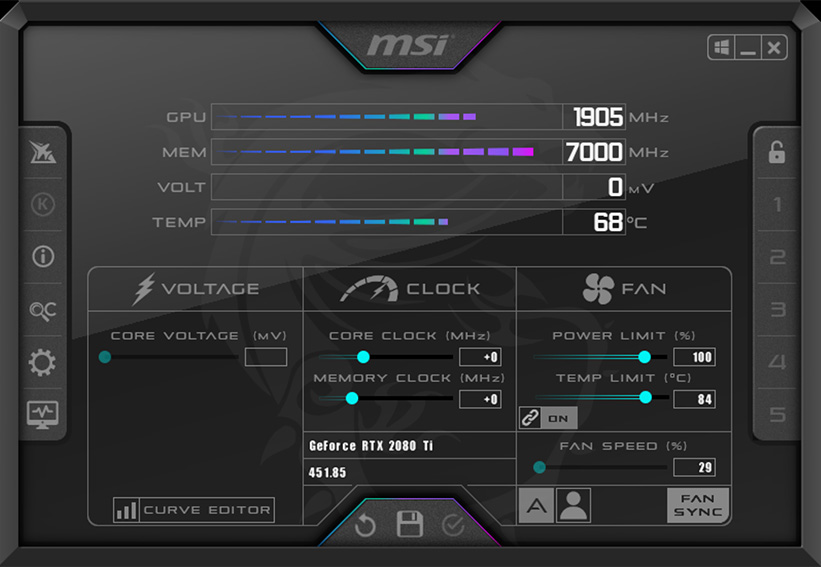
Open your overclocking tool and increase the “Power Limit” slider to its maximum. Then, increase the “Core Clock” by small increments, typically +10 or +20 MHz at a time. Do not make large jumps.
Step 3: Stress Test for Stability
After each increase, run your benchmark tool for a few minutes. If it runs without crashing or showing visual glitches (artifacts), increase the clock speed by another +10 MHz. Repeat this until the benchmark crashes or shows glitches. Once it fails, dial the number back by 10-20 MHz to find your stable maximum.
Step 4: Monitor Temperatures
Throughout this process, keep an eye on your GPU temperature in the overclocking software. Ensure it stays within safe limits (typically under 85°C). If the temperature gets too high, the card will throttle, and you will lose the performance gains you just achieved.
FAQs
GPU overclocking offers modest performance gains but is less worthwhile today with powerful modern GPUs and features like DLSS. It suits budget users extending hardware life, though risks like heat often outweigh benefits for most.
Key downsides include higher temperatures risking thermal throttling or damage, increased power draw (50-100W extra) straining PSUs, reduced GPU lifespan from wear, potential instability or crashes, and voided warranties if excessive.
No, 40°C is excellent and well below safe limits (typically under 85-90°C under load). Idle or light use often hits 30-50°C; it’s cool and indicates good airflow or low utilization.