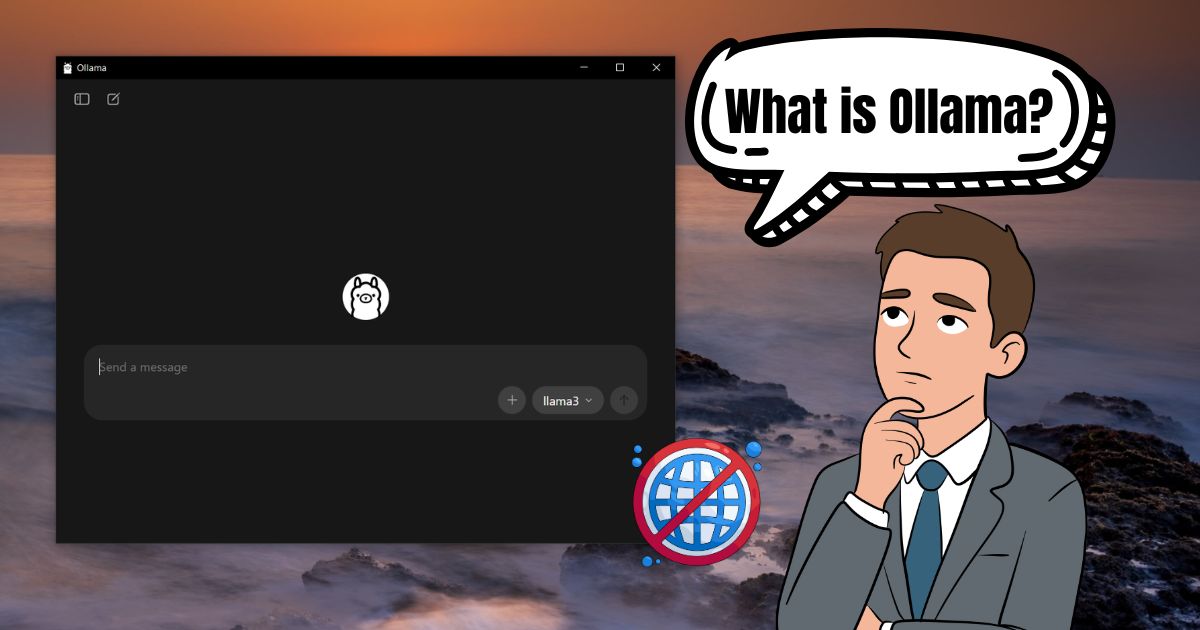
Today, more and more people want to experiment with running AI models locally on their own machines. While it is obviously not possible to run some of the latest large scale models on a regular consumer grade laptop or a desktop, there are some open source models which makes it possible to run AI models locally. DeepSeek is one of those open source AI model, getting attention in this space.
Over the past few years, DeepSeek has released multiple AI models, including reasoning and coding models that developers and researchers can run locally using tools like Ollama, LM Studio, or container environments built with Docker. So in this Guide, I will talk about how to run DeepSeek AI models locally on your computer.
System Requirements to Run DeepSeek Locally
Before running DeepSeek locally, it is important to check whether your system has enough resources. Large language models can require significant memory and processing power, especially when running larger variants. Here are some of the basic hardware requirements to run DeepSeek locally on your computer:
| Component | Minimum Requirement | Recommended for Better Performance |
|---|---|---|
| CPU | Modern multi-core Intel or AMD processor | High-performance multi-core CPU or Apple Silicon chip (M1/M2/M3) |
| RAM | 8 GB RAM (for smaller quantized models) | 16–32 GB RAM for smoother inference |
| GPU (Optional) | Not required for smaller models | NVIDIA GPU with CUDA support or Apple Silicon GPU |
| Storage | At least 5–10 GB free storage | 20–30 GB for multiple models |
| Operating System | Windows, macOS, or Linux | Latest version of the OS |
| Runtime Tools | Ollama, LM Studio, or Docker | Same tools with GPU acceleration enabled |
Along with the hardware, you also need a local runtime environment that can load and execute large language models. Popular options include Ollama, which provides a simple command-line interface for running models, LM Studio, which offers a graphical interface for managing models, and Docker, which allows developers to run models inside containerized environments.
How to Run DeepSeek Locally Using Ollama
One of the easiest ways to run DeepSeek locally is by using Ollama. The tool handles model downloads, runtime configuration, and local inference, making it easier to run large language models without complex setup.
Follow these steps to run DeepSeek locally using Ollama.
Step 1: Install Ollama
- Visit the official Ollama website and download the installer.
- Ollama is available for Windows, macOS, and Linux.
- Complete the installation process on your system.
- Open a terminal and verify the installation by running:
ollama --version
If the installation is successful, the terminal will display the installed version.
Step 2: Download a DeepSeek Model
- Ollama allows you to download models directly from the command line.
- Open a terminal or command prompt.
- Run the following command to download and launch a DeepSeek model:
ollama run deepseek-r1
- The first time you run this command, Ollama will automatically download the model to your system.
- Depending on your internet speed, this process may take a few minutes.
Step 3: Run DeepSeek Locally
- After the download completes, Ollama will launch the model in an interactive terminal session.
- You can now type prompts directly into the terminal.
- The model will generate responses locally without sending data to external servers.
Example prompt:
Explain the basics of machine learning.
The model processes the request on your machine and returns a response.
Step 4: Use the Local API (Optional)
Ollama also runs a local API server, which developers can use to connect applications to the model.
- The API typically runs on localhost:11434.
- Developers can send requests using tools like curl, Python scripts, or other programming environments.
- This allows DeepSeek to be integrated into local applications, chat interfaces, or development tools.
How to Run DeepSeek Locally Using LM Studio
If you prefer a graphical interface instead of a command-line environment, LM Studio offers a simpler way to run local AI models.
- Install LM Studio: Download and install LM Studio on your computer. The application runs on Windows, macOS, and Linux.
- Search for DeepSeek Models: Inside LM Studio, open the model search section and look for DeepSeek models. Many of them are distributed in GGUF format, which is optimized for local inference.
- Download the Model: Choose a model that fits your system’s memory and download it. Smaller models are recommended if your system has limited RAM.
- Load and Run the Model: Once downloaded:
- Load the model in the chat interface
- Start the local inference server
- Begin sending prompts
LM Studio provides a chat-style interface where you can interact with the model without using terminal commands.
How to Run DeepSeek Locally with Docker
Docker is often used by developers who want to create reproducible environments for local AI workloads.
Step 1: Install Docker
Install Docker Desktop or Docker Engine depending on your operating system.
Verify installation:
docker --version
Step 2: Pull a Runtime Image
Many local AI runtimes provide Docker images capable of running language models.
For example:
docker pull ollama/ollama
Step 3: Start the Container
Run the container:
docker run -d -p 11434:11434 ollama/ollama
Once the container is running, you can download and run DeepSeek models inside the container environment and access them through a local API.
This method is often used for development environments or testing AI applications locally.
Best DeepSeek Models You Can Run Locally
DeepSeek has released several open models with different sizes and capabilities. Some of these models are designed for reasoning tasks, while others focus on coding or general language understanding. When running DeepSeek locally, the model you choose should match your system’s hardware resources.
Below are some of the most commonly used DeepSeek models that can run on local machines.
DeepSeek-R1 Distilled Models
The distilled versions of the DeepSeek-R1 model are among the most practical options for running locally. These models are designed to preserve much of the reasoning capability of the full DeepSeek-R1 model while requiring fewer computing resources.
Distilled models are usually released in smaller parameter sizes and are often distributed in quantized formats, which makes them easier to run on systems with limited RAM. Many developers use these models to experiment with reasoning tasks, AI assistants, or research workflows on local machines.
Because they are optimized for efficiency, these models are commonly used with local AI runtimes such as Ollama and LM Studio.
DeepSeek-Coder
DeepSeek also released specialized coding models designed for software development tasks. These models are trained on large datasets containing programming languages, code repositories, and technical documentation.
The coding models can assist with tasks such as:
- Writing code snippets
- Explaining existing code
- Generating functions or scripts
- Debugging programming errors
Developers often run DeepSeek-Coder locally when they want an AI coding assistant without sending source code to external cloud services.
Quantized DeepSeek Models
Quantized versions of DeepSeek models are widely used for local inference. Quantization reduces the precision of model weights, which significantly lowers memory usage and improves performance on consumer hardware.
For example, a model that normally requires large amounts of RAM can be converted into 4-bit or 8-bit quantized versions, making it possible to run the model on laptops or desktops with limited resources.
Many communities distribute these quantized models in GGUF format, which is supported by several local AI tools. Using quantized models is often the most practical way to run DeepSeek locally on standard consumer systems.
Tips to Improve DeepSeek Performance on Local Machines
Running large language models locally can consume significant system resources, especially when using larger model variants. The following tips can help improve performance and make the model run more smoothly on consumer hardware.
Use Quantized Models
- Quantized models use reduced numerical precision (such as 4-bit or 8-bit weights) to lower memory usage.
- This allows larger models to run on systems with limited RAM or GPU memory.
- Quantized models are widely used when running DeepSeek through tools like Ollama or LM Studio.
- In many cases, quantized versions offer a good balance between performance and model capability.
Enable GPU Acceleration
- If your system has a compatible GPU, enabling GPU inference can significantly improve response speed.
- NVIDIA GPUs with CUDA support are commonly used for local AI workloads.
- Apple Silicon chips also provide GPU acceleration for several local inference tools.
- Running models on a GPU reduces the workload on the CPU and speeds up token generation.
Reduce Context Length
- Large context windows require more memory during inference.
- Reducing the context length can lower RAM and GPU usage.
- This adjustment can also improve response speed, especially on systems with limited hardware resources.
Close Background Applications
- Running large language models requires significant RAM and CPU resources.
- Closing unnecessary applications helps free up system memory.
- This ensures that the DeepSeek model has enough resources to run without slowdowns or crashes.
Choose Smaller Model Variants
- Larger models require more RAM and processing power.
- If your system struggles with performance, consider switching to a smaller DeepSeek model variant.
- Smaller models typically load faster and generate responses more quickly on consumer machines.
FAQs
Yes, DeepSeek models like DeepSeek-R1 can run fully offline on your local machine after the initial download using tools like Ollama.
Yes, running DeepSeek locally enhances data privacy by keeping everything on your device with no external server transmission, but ensure your system is secure (updated OS, antivirus) and bind servers to localhost to prevent network exposure; it also has known vulnerabilities like jailbreaks.
Install Ollama: On Linux/Mac, run curl -fsSL https://ollama.com/install.sh | sh; on Windows, use WSL or PowerShell installer.
Run ollama run deepseek-r1:7b (or :1.5b for smaller) to download and start chatting interactively in the terminal.