Your graphics card is one of the hardest working components in your PC, especially if you’re into gaming, video editing, 3D rendering, or running AI models locally. And like any hard-working piece of hardware, it generates a lot of heat. But how do you actually know what temperature your GPU is running at? And more importantly, when should you start worrying? I have put together this guide to help you understand GPU temperature monitoring, why it matters, and what the safe limits are for your card.
Why Graphics Card Temperature Matters
A GPU is one of the key component of any PC. If you push it too hard without proper cooling, the performance will suffer. Push it even harder, and you risk permanent damage. While modern graphics cards are designed with thermal safeguards, but that doesn’t mean you should ignore temperature readings.
When a GPU gets too hot, it automatically reduces its clock speeds to cool down a process called thermal throttling. This tanks your gaming performance and defeats the purpose of owning a high-end card. Over the long term, excessive heat accelerates component degradation, potentially cutting your graphics card’s lifespan in half or more.
The dust buildup inside your PC case is often the culprit. Many users go months or even years without cleaning their rigs, and the accumulated dust acts like insulation, trapping heat around your GPU. Running a before-and-after temperature test after a thorough cleaning can be an eye-opening experience sometimes dropping temperatures by 10-15 degrees Celsius.
Best Tools for Temperature Monitoring
You don’t need fancy or paid software to check your GPU temperatures. There are some excellent free utilities will do the job just fine. Here are the ones we recommend:
GPU-Z
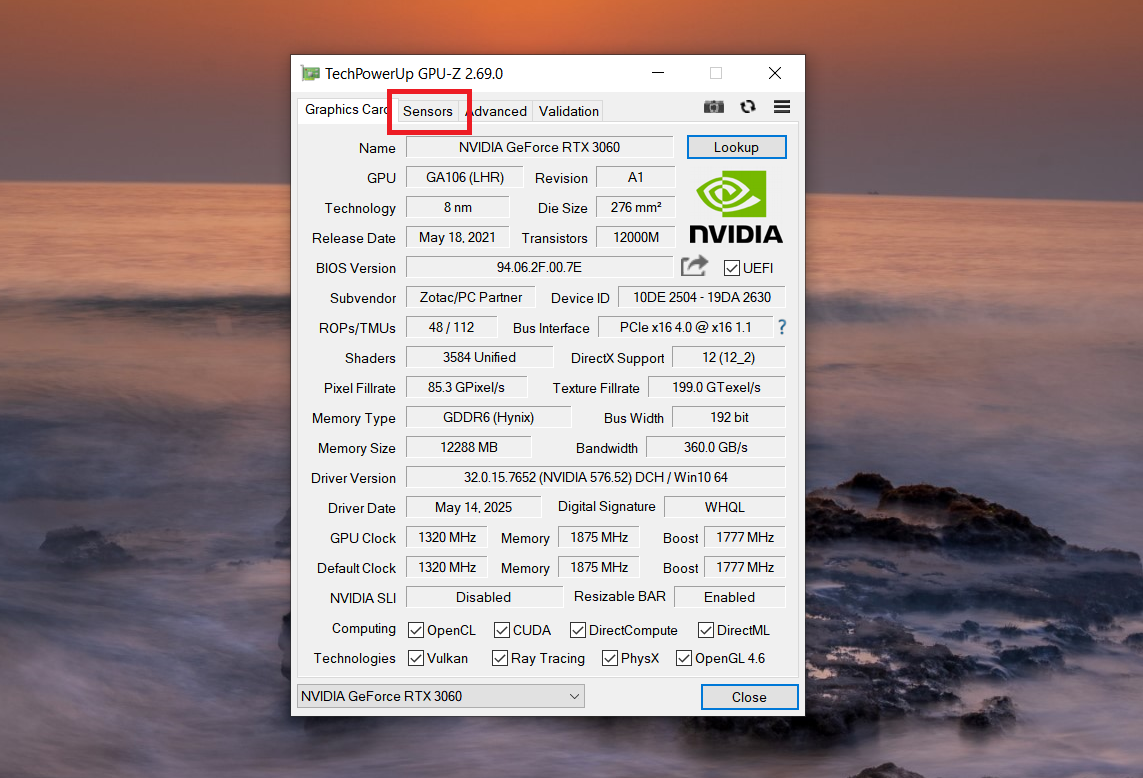
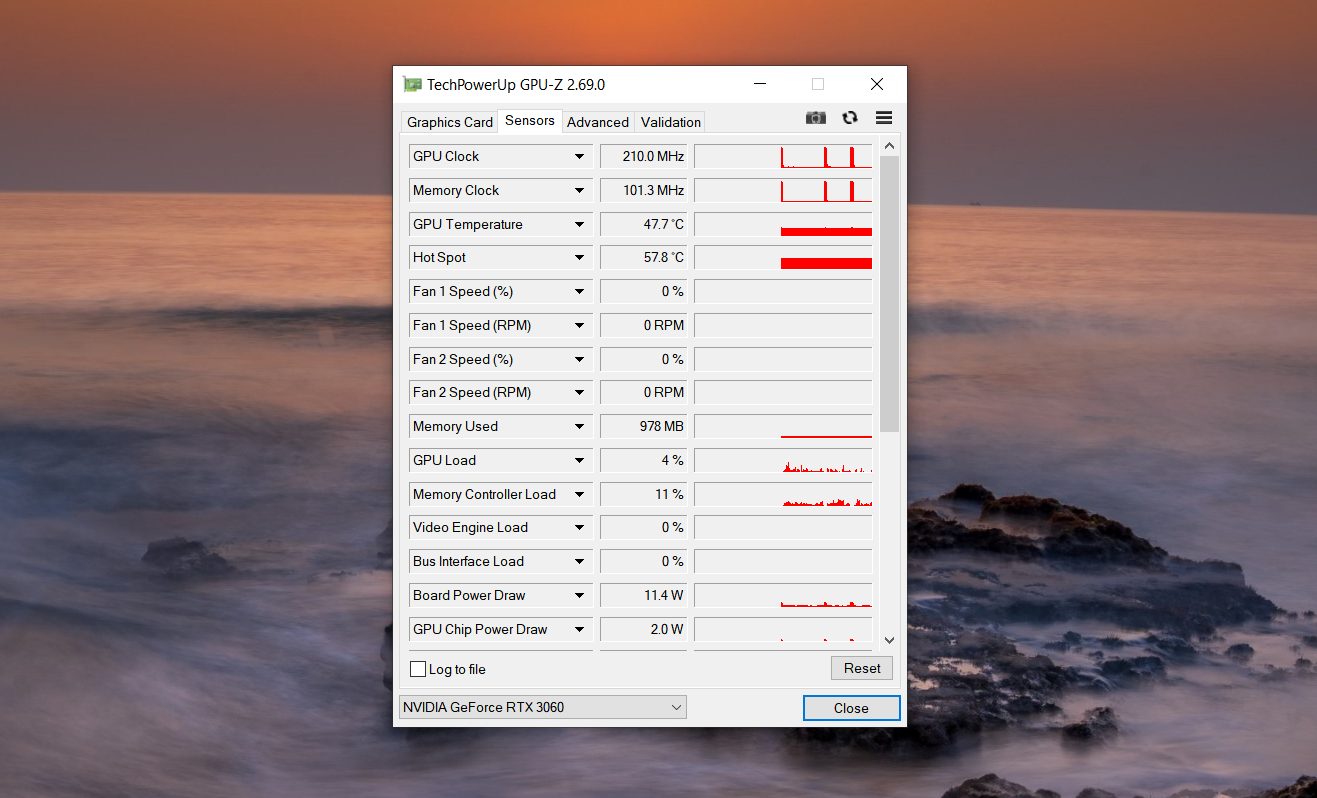
GPU-Z is a lightweight utility that displays detailed information about your graphics card. The Sensors tab is where the magic happens, it shows real-time temperature readings, clock speeds, fan RPM, and more.
The real strength of GPU-Z is its CSV logging feature. You can record all sensor data over time, which allows you to spot temperature trends during gaming sessions. Simply enable logging, launch your favorite game or benchmark, play for at least 15 minutes (giving your GPU time to reach thermal equilibrium), and then review the logged data to find peak temperatures and how your card behaved throughout the session.
MSI Afterburner
MSI Afterburner is primarily known as an overclocking tool, but its monitoring capabilities are excellent. The on-screen display shows real-time graphs of GPU temperature, usage percentage, core clock, and memory clock speeds.
What sets Afterburner apart is its ability to display maximum and average values for each metric. You’ll immediately see that your GPU peaked at 73 degrees, ran at an average of 68 degrees, or whatever the numbers reveal. It also supports CSV logging and can monitor your CPU alongside your GPU, giving you a complete picture of system performance.
HWiNFO
If you want maximum detail about everything running in your PC, HWiNFO is the tool for you. Beyond just GPU temperature and clock speeds, it monitors CPU performance, motherboard voltages, SSD health, and thermal sensor data that other tools often miss.
Here’s an important feature that makes HWiNFO particularly valuable: it can report actual GDDR6 and GDDR6X memory temperatures on compatible graphics cards (essentially the Nvidia RTX 30-series and AMD Radeon RX 6000-series cards). This is important because VRAM can actually get hotter than the GPU core itself, and most monitoring tools ignore it entirely.
The “sensors-only” mode is particularly useful for a clean, uncluttered display. Like the other tools mentioned, HWiNFO supports CSV logging and provides minimum, maximum, and average readings for all monitored components.
How to Check Your GPU Temperature
The process is straightforward:
- Download one of the monitoring tools above (GPU-Z is probably the easiest to start with).
- Install and launch the application. Navigate to the Sensors tab or monitoring area.
- If you want to capture data over time, enable CSV logging.
- Launch a demanding game or use a benchmarking tool. We recommend actual games over synthetic benchmarks because they better represent real-world usage. Spend at least 15 minutes gaming to let your GPU reach its normal operating temperature.
- Exit the game and review your temperature readings. Look for peak temperatures, average temperatures, and how temperatures evolved over the gaming session.
Temperature Targets, What’s Normal?
This is where the question gets more nuanced. Different GPU generations have different thermal characteristics, and what’s acceptable varies.
General Guidelines:
- GPU core temperatures should ideally stay below 80 degrees Celsius during gaming
- Memory temperatures on GDDR6X should stay below 100 degrees Celsius (though up to 110C is technically within spec)
- AMD’s Radeon architecture often runs warmer than Nvidia equivalents seeing the mid-80s under sustained load isn’t unusual for Radeon cards
How to Identify Thermal Throttling?
If you suspect your card is throttling due to heat, check if your GPU clocks drop significantly during gaming. For example, if your graphics card is supposed to run at 2.0 GHz boost but consistently drops to 1.5 GHz after five minutes of gaming, that’s a red flag. Compare your logged clock speeds to the official specifications from Nvidia or AMD. If your sustained clocks are more than 100 MHz below the rated gaming/boost clock, thermal throttling is likely occurring.
Another telltale sign is if clocks start high but steadily drop over a 30-minute gaming session. A well-cooled card should maintain relatively stable clock speeds once it reaches thermal equilibrium.
When Your GPU Is Running Hot
If temperature monitoring reveals that your graphics card is consistently running above 85 degrees Celsius, it’s time to take action. Here are some simple fixes:
- Cleaning: The first step should always be physical cleaning. Use compressed air to blow out dust from your PC’s case, paying special attention to the graphics card’s heatsink and fan. A proper cleaning often yields impressive results, sometimes dropping temperatures by 10-20 degrees.
- Airflow: Evaluate your case’s airflow design. If your GPU is positioned right next to the power supply with no exhaust fan nearby, you’ve got an airflow problem. Consider adding case fans or repositioning components if possible.
- Thermal Paste and Pads: If cleaning and airflow improvements don’t help, your GPU’s thermal paste or thermal pads might have degraded. If you’re comfortable taking apart your graphics card’s cooler, removing old thermal compound and applying fresh paste can restore thermal performance. Some users report 5-10 degree improvements from this alone.
- Underclocking: As a last resort, you can reduce your GPU’s clock speed in software using tools like MSI Afterburner or Nvidia’s Control Panel. This reduces heat output at the cost of gaming performance, but it’s a viable option if your cooling solution is simply inadequate.
The Stress Test Approach
Some users prefer a more aggressive approach, stress testing with dedicated tools. Utilities like FurMark push your GPU to maximum load, revealing worst-case-scenario temperatures.
Here’s the caveat, stress testing doesn’t replicate actual gaming scenarios. Games rarely push a GPU to 100% utilization in ways that stress tests do. Additionally, aggressive stress tests like FurMark can actually damage cards that are already thermally compromised or poorly made. Use caution if you go this route, and never run extended stress tests on used or warranty-expired graphics cards without understanding the risks.
Gaming sessions are usually a better way to understand real-world performance. Run your favorite demanding title for 20-30 minutes, log the data, and you’ll get accurate information about how your GPU behaves during actual use.
Regular temperature checks, combined with basic maintenance like dust cleaning, will keep your GPU running cool and extend its lifespan significantly. And if you ever plan to overclock your card or push it to its limits, temperature monitoring becomes absolutely essential. Start with GPU-Z, move to HWiNFO for more details, and you’ll have all the data you need to keep your graphics card running optimally.
FAQs
No, 70°C is not hot for a GPU under load during gaming or rendering, it’s within the normal 60-85°C range and safe for long-term use.
No, 40°C is not too hot, it’s actually ideal for idle or light tasks, indicating excellent cooling well below typical 30-50°C idle temps.
Yes, 140°C (likely meaning 140°F or ~60°C) is hot only if under heavy load, but it’s still acceptable; most GPUs throttle safely above 90-95°C to prevent damage.
Improve case airflow with intake/exhaust fans, clean dust from heatsinks every few months, and use software like MSI Afterburner to adjust fan curves for better temps without noise.