The NVIDIA Control Panel is a free utility bundled with NVIDIA graphics drivers. It allows you to adjust GPU settings including screen resolution, refresh rate, color profiles, and advanced 3D performance options on Windows PCs. Whether you are a gamer optimizing FPS, a creator calibrating display colors, or someone configuring multiple monitors, this tool is essential for getting the most out of your NVIDIA GPU.
One key thing to understand upfront is that the Control Panel is not a standalone download in most cases. It typically installs automatically as part of the official driver package from NVIDIA. However, depending on your setup particularly with newer DCH-style drivers you may need to install it separately through the Microsoft Store. This guide covers the correct and safest way to download and install it.
How to Download NVIDIA Control Panel via Official Website
Follow these steps to install NVIDIA Control Panel safely and correctly:
Step 1: Identify Your NVIDIA GPU
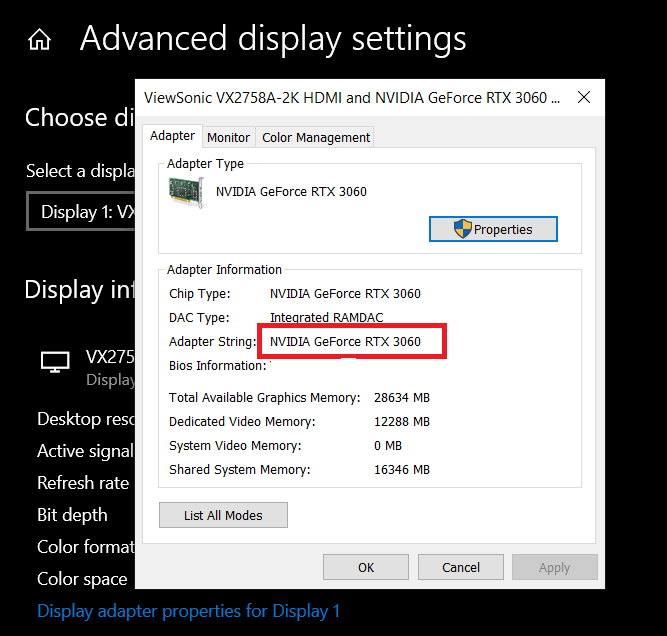
Right-click on your desktop, go to Display Settings, then click Advanced Display followed by Display Adapter Properties. This shows your GPU model (for example, GeForce RTX 4060).
Step 2: Go to NVIDIA’s Official Driver Page
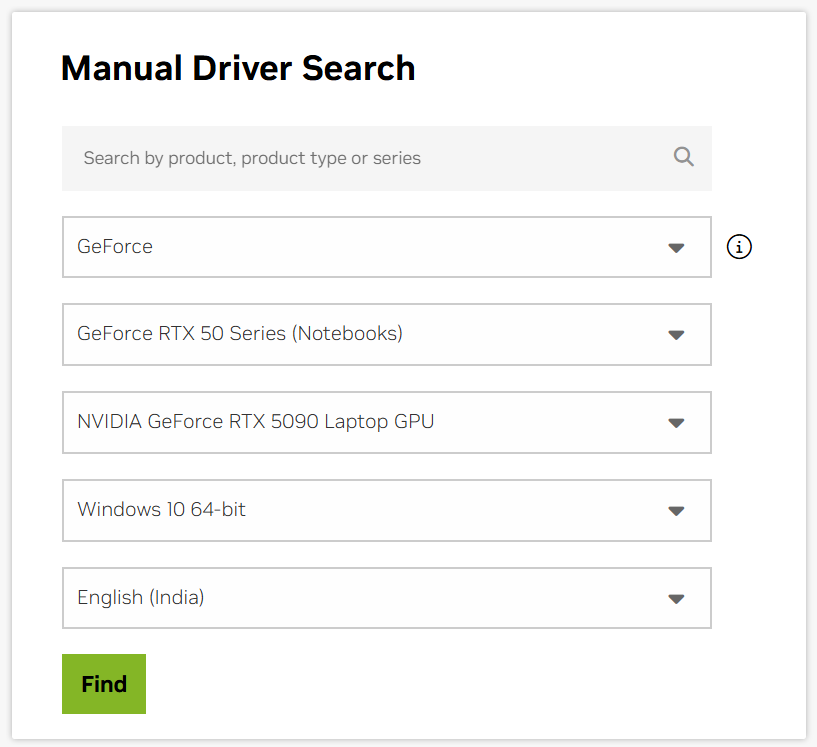
Visit the NVIDIA Drivers section on the official NVIDIA website. Enter your GPU model, your Windows version (10 or 11), and the driver type you need either Game Ready or Studio.
Step 3: Download the Correct Driver Package
There are two driver types to choose from:
- Standard driver package: Includes the NVIDIA Control Panel directly in the installer. This is the recommended choice if you want it bundled in the same download.
- DCH drivers: These may require you to install or update the Control Panel separately via the Microsoft Store.
Step 4: Run the Installer
Open the downloaded .exe file as an administrator. You will be presented with two installation modes:
- Express Installation: The easier, recommended option for most users.
- Custom (Advanced): If available, make sure the NVIDIA Control Panel-related components are selected before proceeding.
After installation, restart your PC to ensure all driver components are properly applied.
Step 5: Access NVIDIA Control Panel
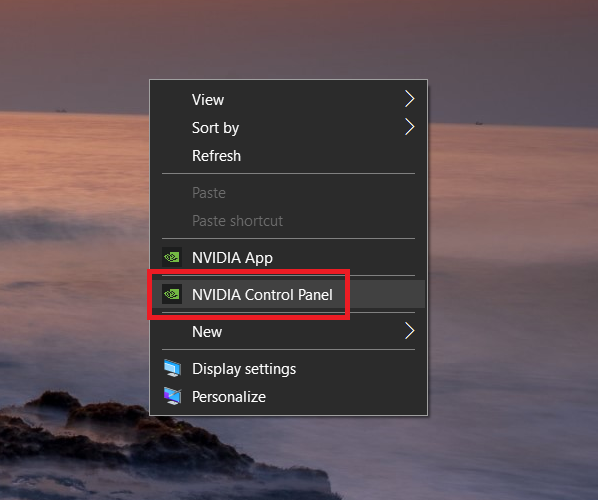
Right-click on your desktop and select NVIDIA Control Panel, or search for it in the Start menu.
If it is missing after installation: Open the Microsoft Store, search for “NVIDIA Control Panel,” and click Get to install it.
Use the NVIDIA App
While this is an option you can use the NVIDIA App, available from NVIDIA’s official website, is the successor to GeForce Experience. It manages driver updates and game-specific settings but does not replace the NVIDIA Control Panel. The Control Panel remains a separate utility, installed either with the Standard driver or via the Microsoft Store for DCH driver users.
Warnings and Common Pitfalls
- Do not download the Control Panel from third-party websites, they may contain malware.
- NVIDIA Control Panel is a Windows-only tool and does not work on macOS or Linux.
- If you are on DCH drivers and the Control Panel is missing, install it from the Microsoft Store.
- Standard drivers include the Control Panel by default.
- If the Control Panel is missing after installation, try reinstalling the drivers or getting it from the Microsoft Store.
- Use Display Driver Uninstaller (DDU) only when you run into driver conflicts, not as a routine step.
- Keep your drivers updated via the NVIDIA App or the official NVIDIA site to access the latest features and fixes.
FAQs
Right-click on your desktop and select NVIDIA Control Panel. You can also find it by searching in the Start menu. If it does not appear, the tool is likely not installed, the driver installation was incomplete, or your system is on DCH drivers without the Microsoft Store version.
Yes, it is completely free. It comes included with NVIDIA graphics drivers or is available at no cost through the Microsoft Store.
This can happen due to several reasons:
– You are using DCH drivers without having installed the Microsoft Store version.
– Your drivers are missing or outdated.
– Your system is blocked from installing apps via the Microsoft Store.
– Your system does not have a supported NVIDIA GPU.
Download the NVIDIA App from NVIDIA’s official website. It replaces GeForce Experience and handles driver updates along with game-specific settings. It does not bundle the NVIDIA Control Panel, which remains a separate utility installed either with the driver package or through the Microsoft Store.