If you are tired of pop-ups and screen clutter interrupting your workflow or gaming sessions, disabling the NVIDIA overlay can be a solution. While the tool offers quick access to recording and performance metrics, many users find it unnecessary or distracting.
So in this guide, I will talk about how to turn off the overlay, manage specific features, and stop it from running on startup.
What Is NVIDIA Overlay?
The NVIDIA overlay is a built-in interface included with NVIDIA App. It can capture screenshots, record gameplay, save instant replays, and monitor real-time system performance like framerates and GPU temperatures. It operates in the background and can be pulled up instantly using a Alt+Z keyboard shortcut.
NVIDIA enables this feature by default to ensure that gamers and creators have immediate access to sharing and monitoring tools as soon as they install their graphics drivers. The company wants these features to be highly visible and easily accessible right out of the box, without requiring users to dig through complex menus or download third-party software.
Despite its usefulness, there are reasons why someone might want to turn it off. The overlay can occasionally cause minor performance drops or stuttering in resource-heavy applications. It is also known to clash with other software, such as virtual desktop environments or third-party recording tools like OBS Studio.
Additionally, the constant notification when launching an application can be an annoying distraction if you have no intention of using the recording features.
How to Disable NVIDIA Overlay?
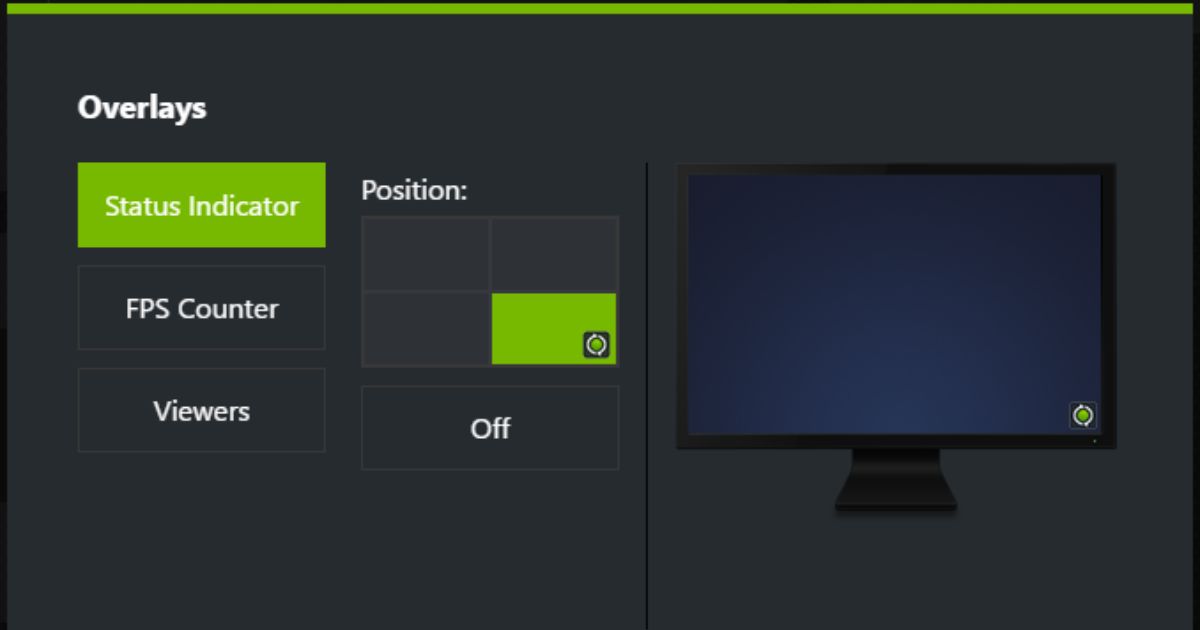
If you want to turn off the entire overlay system so it never pops up again, you can do so directly from the main application settings.
- Open the NVIDIA App.
- Click on the gear icon located in the top-right corner next to your profile name to open the Settings menu.
- Make sure you are on the “General” tab on the left-hand side.
- Scroll down until you find the section labeled “IN-GAME OVERLAY.”
- Click the green toggle switch to turn it to the “Off” position.
How to Disable NVIDIA Overlay for Specific Features
Sometimes you might want to keep the main menu available but disable the annoying performance metrics or notifications that appear on your screen.
- Open NVIDIA App and click the gear icon to access your Settings.
- Under the “IN-GAME OVERLAY” section, leave the main switch turned on, but click the “Settings” button right below it.
- To remove the performance monitor (the FPS and GPU stats that appear when you press Alt+R), click on “HUD layout,” navigate to “Performance,” and click “Off.”
- To disable the pop-up alerts, go back to the overlay settings menu, click on “Notifications,” and toggle off the “Open/close in-game overlay” option.
How to Completely Disable NVIDIA Overlay on Startup
If you want to prevent the NVIDIA App and its overlay services from launching automatically when you turn on your computer, you can easily disable it via the Windows Task Manager.
- Press Ctrl + Shift + Esc on your keyboard to open the Windows Task Manager.
- Click on the “Startup” or “Startup apps” tab on the left or top navigation bar.
- Scroll through the list of applications until you locate “NVIDIA App.”
- Right-click on the application and select “Disable.”
How to Enable NVIDIA Overlay Again (If Needed)
If you ever need to record a quick clip or check your frame rates, turning the feature back on is just as easy as turning it off.
- Open the NVIDIA App.
- Navigate to the Settings menu by clicking the gear icon in the top right.
- Scroll down to the “IN-GAME OVERLAY” section and click the toggle switch back to the “On” position.
How to Check If NVIDIA Overlay Is Disabled
The quickest way to verify that the overlay is completely turned off is to test the default keyboard shortcuts.
- Press Alt + Z on your keyboard. If the main NVIDIA menu does not appear in the center of your screen, the primary overlay is off.
- Press Alt + R. If no performance monitoring box appears in the corner of your screen, the performance overlay is successfully disabled.
- Finally, launch any full-screen game or heavy application. If you do not see a notification box in the top right corner prompting you to press a shortcut, the process worked perfectly.
FAQs
Right-click the NVIDIA tray icon (system tray), select NVIDIA App, click the gear icon (top-right), go to General or Features tab, and toggle “In-Game Overlay” off.
Alt+Z opens the overlay; disable it by opening NVIDIA App > Settings (gear) > toggle off “In-Game Overlay” under General. This prevents Alt+Z from working.
It can reduce minor stuttering or resource use in demanding games/apps, but gains are small (often negligible) on modern hardware. Test in your setup.
Open overlay (Alt+Z if enabled) > Settings/gear > HUD Layout or Performance/Statistics > set FPS, GPU, CPU monitors to Off.