Windows 11 (version 24H2 and newer, with supported drivers) can display your Neural Processing Unit (NPU) usage, but the operating system does not explicitly show your maximum TOPS (Trillions of Operations Per Second). To find your NPU TOPS, you must identify your processor model in system settings and match it against the manufacturer’s hardware specifications.
Understanding your exact hardware capabilities is necessary because Microsoft requires a minimum of 40 NPU TOPS (from the dedicated neural processor) for a machine to qualify as a Copilot+ PC. Older processors often fall short of this threshold.
Find Your Processor Model
The first phase is identifying the exact silicon inside your machine.
- Write down the exact chip name displayed.
- Press the Windows key and open the Settings application.
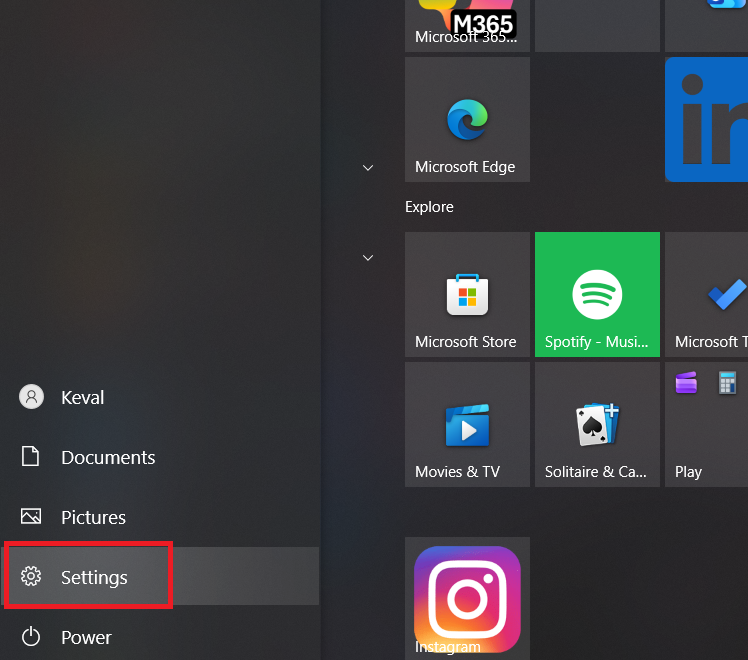
- Navigate to the System tab.
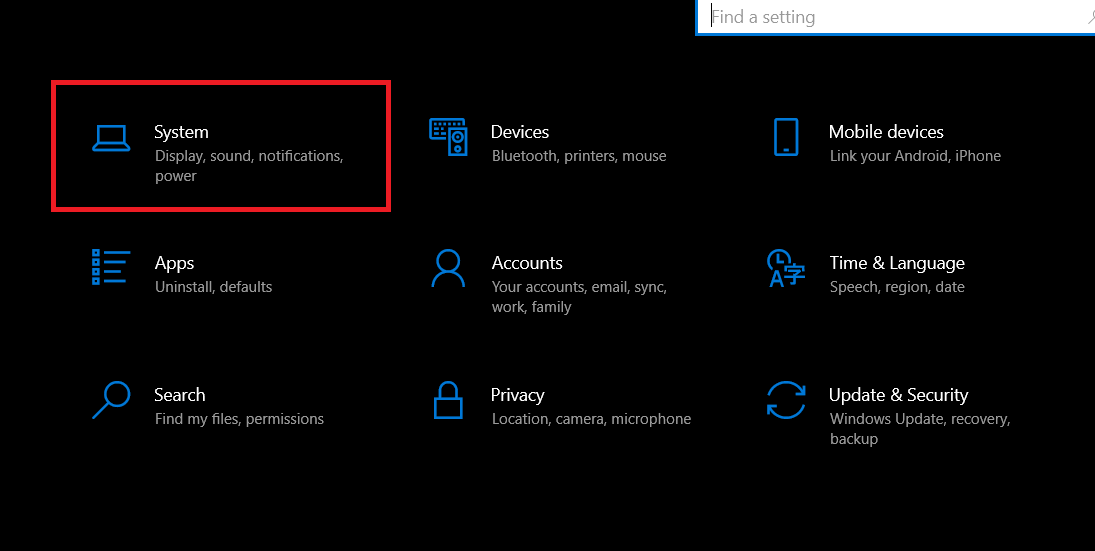
- Scroll down and click on About.
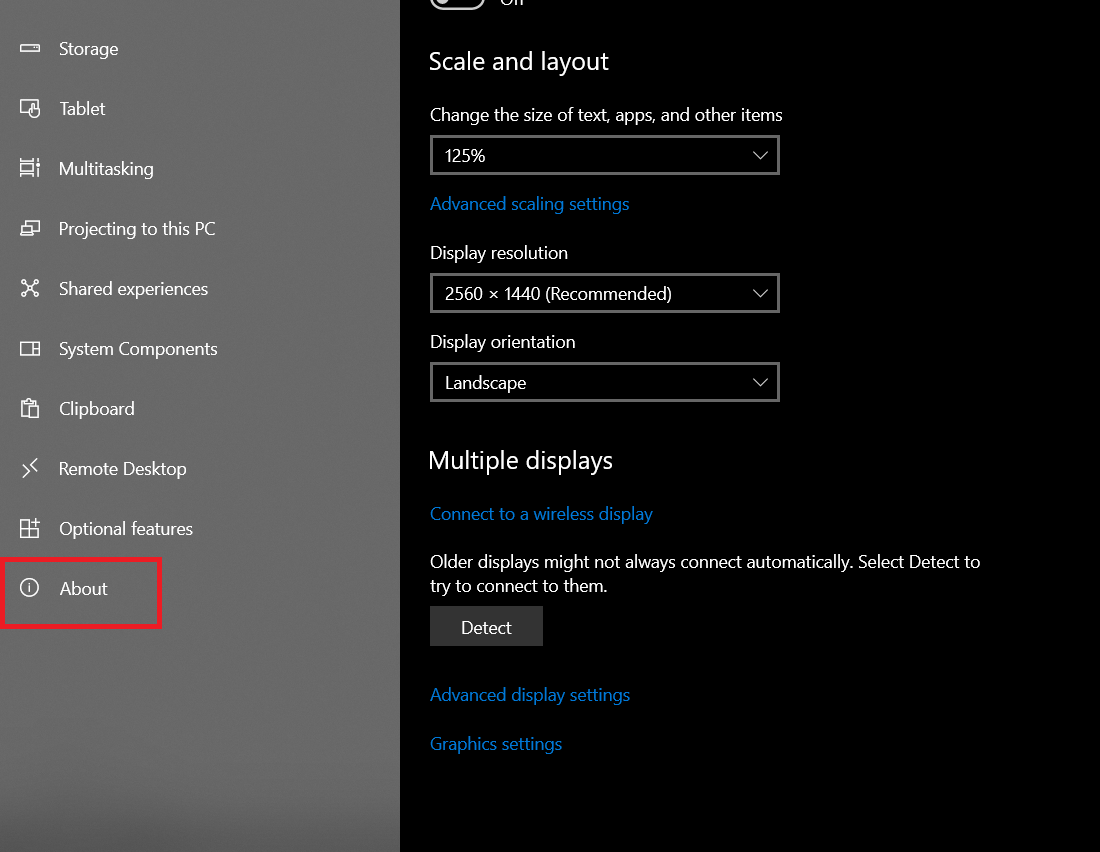
- Look for the Processor entry under Device specifications.
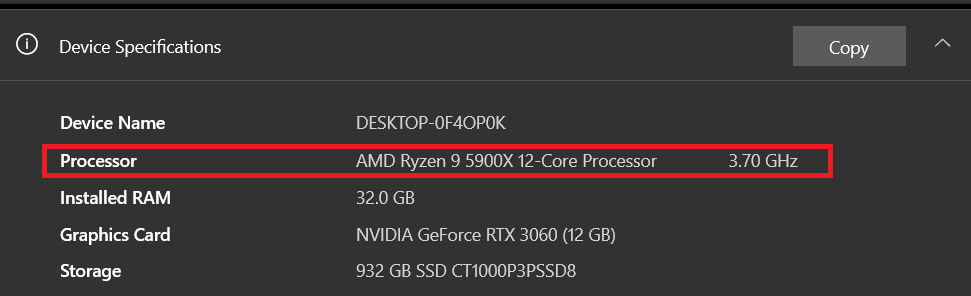
Determine Your TOPS Limit
Now that you know your processor, you can identify its maximum NPU output. Hardware manufacturers set a hard limit on how many operations the dedicated neural silicon can handle. Find your chip in the data below to see its exact rating.
| Processor Series | Manufacturer | NPU TOPS Rating | Copilot+ PC Compatible |
| Ryzen AI 300 Series | AMD | 50+ (varies by model) | Yes |
| Snapdragon X Elite and Plus | Qualcomm | 45 | Yes |
| Core Ultra Series 2 (Lunar Lake) | Intel | Up to 48 | Yes |
| Ryzen 8040 Series | AMD | 16 | No |
| Core Ultra Series 1 (Meteor Lake) | Intel | 10 to 13 | No |
If your specific processor is not listed in the table, you can locate the metric by searching the manufacturer’s official product brief for your exact chip name followed by the term “NPU TOPS.”
Monitor NPU Usage in Real Time
While you cannot see the maximum limit in the operating system, you can monitor how much of your NPU is actively engaged during AI workloads.
- Press Ctrl + Shift + Esc simultaneously to launch Task Manager.
- Click the Performance tab on the left sidebar.
- Scroll down the component list and look for an entry labelled “NPU” (or “NPU 0” on some systems).
- Observe the utilization graph.
A flat graph usually means your current applications are not using the NPU and may be running on the CPU or GPU instead. To see the NPU activate, you need to initiate a localized AI task.
Test the NPU Hardware
You can verify the hardware functions correctly by forcing the system to run an edge workload.
- Open a video conferencing application.
- Enable Windows Studio Effects (on supported hardware) such as automatic framing or background blur.
- Switch back to the Task Manager Performance tab.
- Watch the NPU utilization graph spike above zero percent.
Local large language models also trigger this component. Most local large language model applications (such as LM Studio) currently rely on the CPU or GPU, as NPU support for LLM workloads is still limited. If the NPU entry does not appear in Task Manager, your processor may lack dedicated AI hardware, or your system could be missing drivers, running an older version of Windows, or have the NPU disabled.
FAQs
Open Task Manager (Ctrl + Shift + Esc), go to Performance tab, and run an AI workload like Windows Studio Effects or Copilot+ features; NPU usage appears if supported.
47 TOPS means the NPU performs 47 trillion operations per second, enabling fast local AI tasks like image recognition or language processing.
In Task Manager > Performance, select NPU to see its name (e.g., Intel AI Boost); or check Device Manager under Neural processors.
Right-click taskbar > Task Manager > Performance tab; look for NPU listed with usage graph.