We all know that GPUs rely on a dedicated memory called VRAM (Video Random Access Memory) to store textures, frame buffers, and other graphics data. Plus the amount of VRAM available on your system decides performance in games, video editing software, 3D rendering tools, and primarily AI workloads.
However, despite the awareness around VRAM there are still confusion around how much VRAM do I have, how to check VRAM, or whether it’s possible to increase or change VRAM.
So in this article I will talk about how you can check VRAM on Windows and macOS, whether you can increase or change VRAM allocation, which GPUs currently offer 24GB of VRAM, and more.
How to Check VRAM on Your GPU?
While finding details about VRAM on your system is simple and straightforward, the exact steps depends on your operating system and the specific hardware inside your machine. Here are some of the popular ways to locate your VRAM numbers across platforms.
How to Check VRAM on Windows?
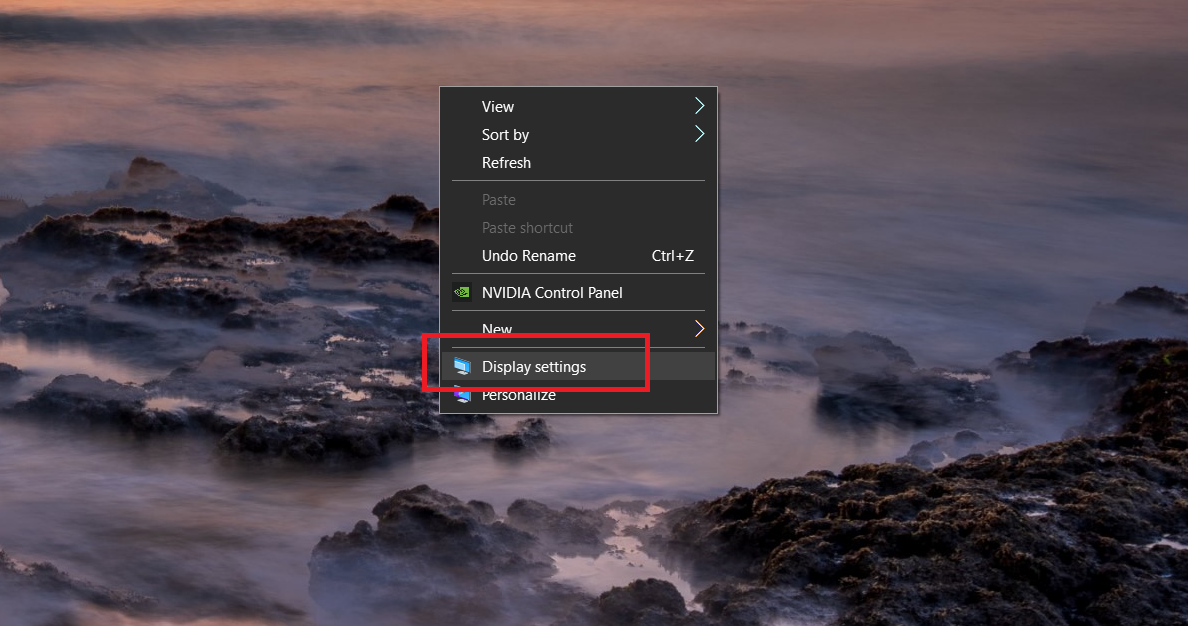
Windows allows you to see VRAM through the Display Settings panel. Follow the steps mentioned below to check VRAM on your windows machine:
- Right-click on the desktop and select Display settings
- Scroll down and click Advanced display settings
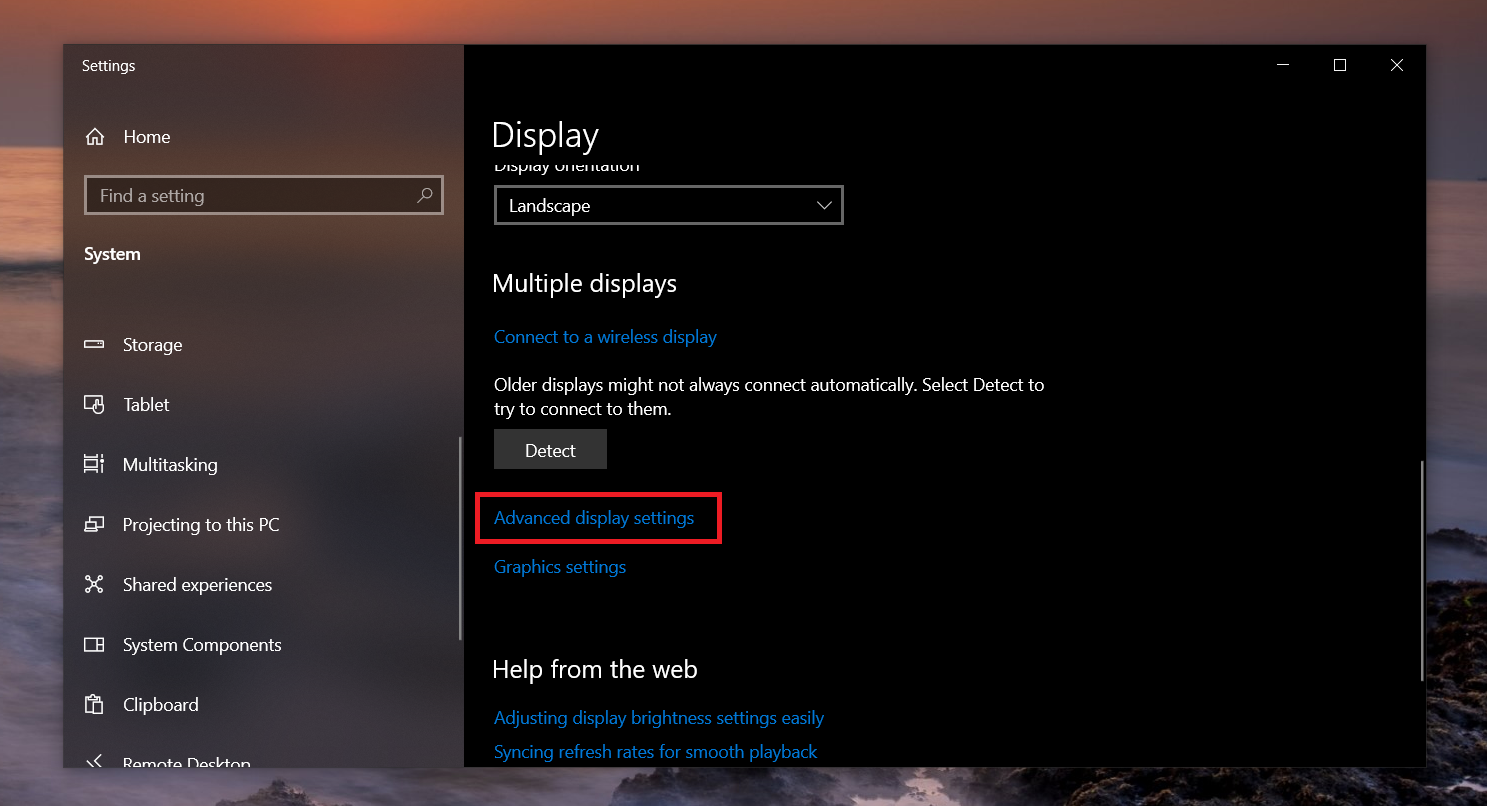
- Click Display adapter properties
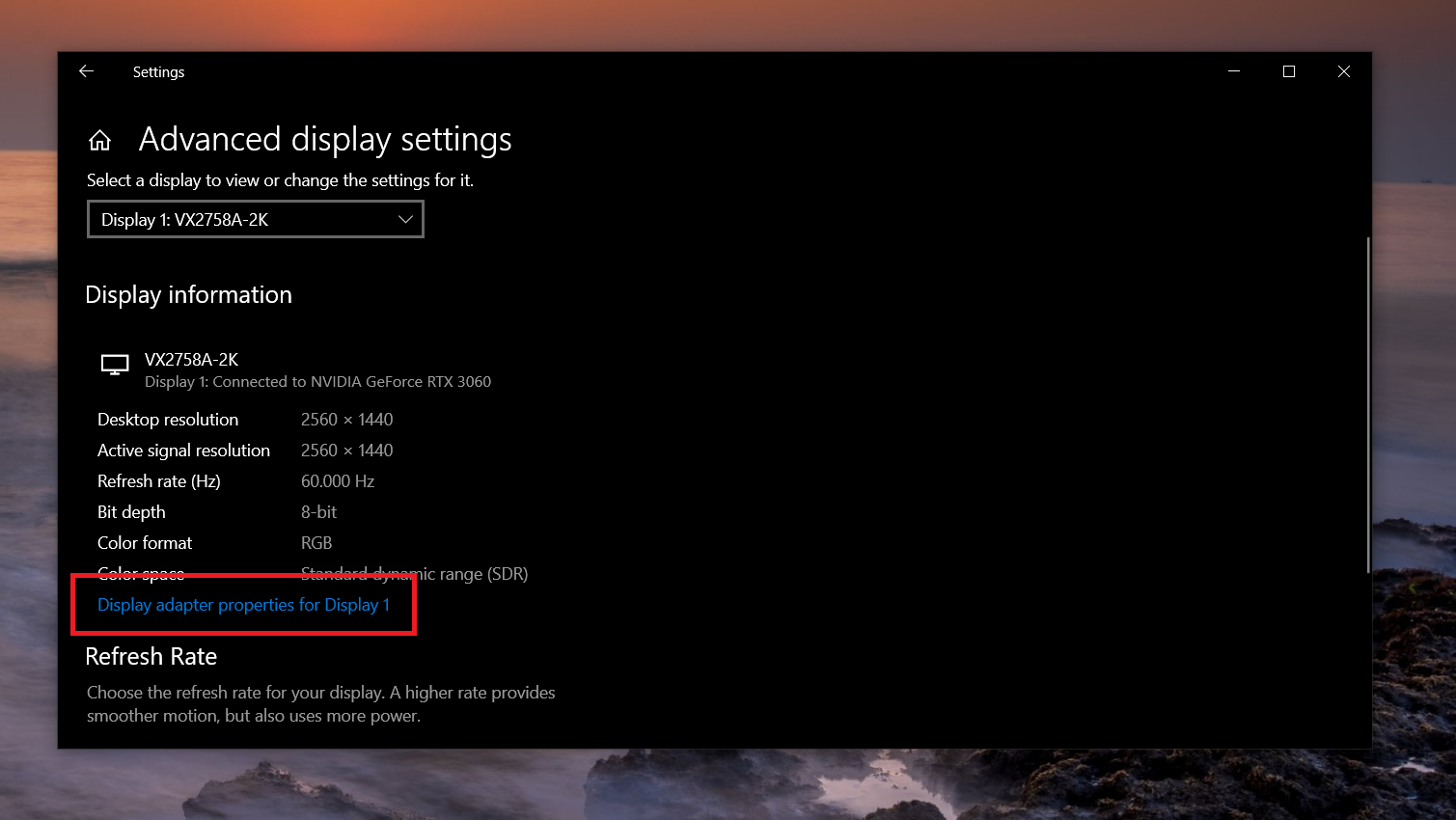
- Look for Dedicated Video Memory
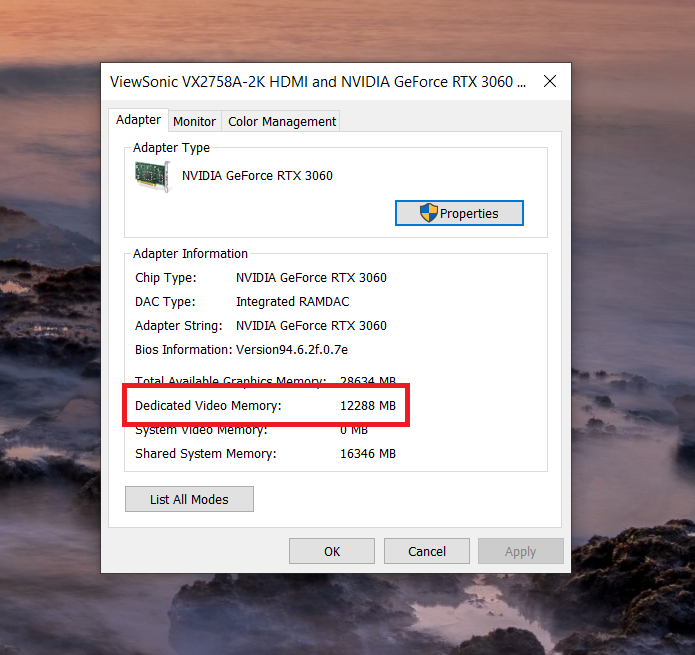
The value listed there shows the total VRAM available on your GPU.
If you are using an integrated GPU, the system may show both dedicated memory as well as the shared system memory.
How to See VRAM Using Task Manager?
Task Manager gives a quick way to monitor GPU usage, including VRAM usage. Follow the steps mentioned below to check VRAM in Task Manager:
- Press Ctrl + Shift + Esc
- Open the Performance tab
- Select GPU from the sidebar
- Look for Dedicated GPU memory
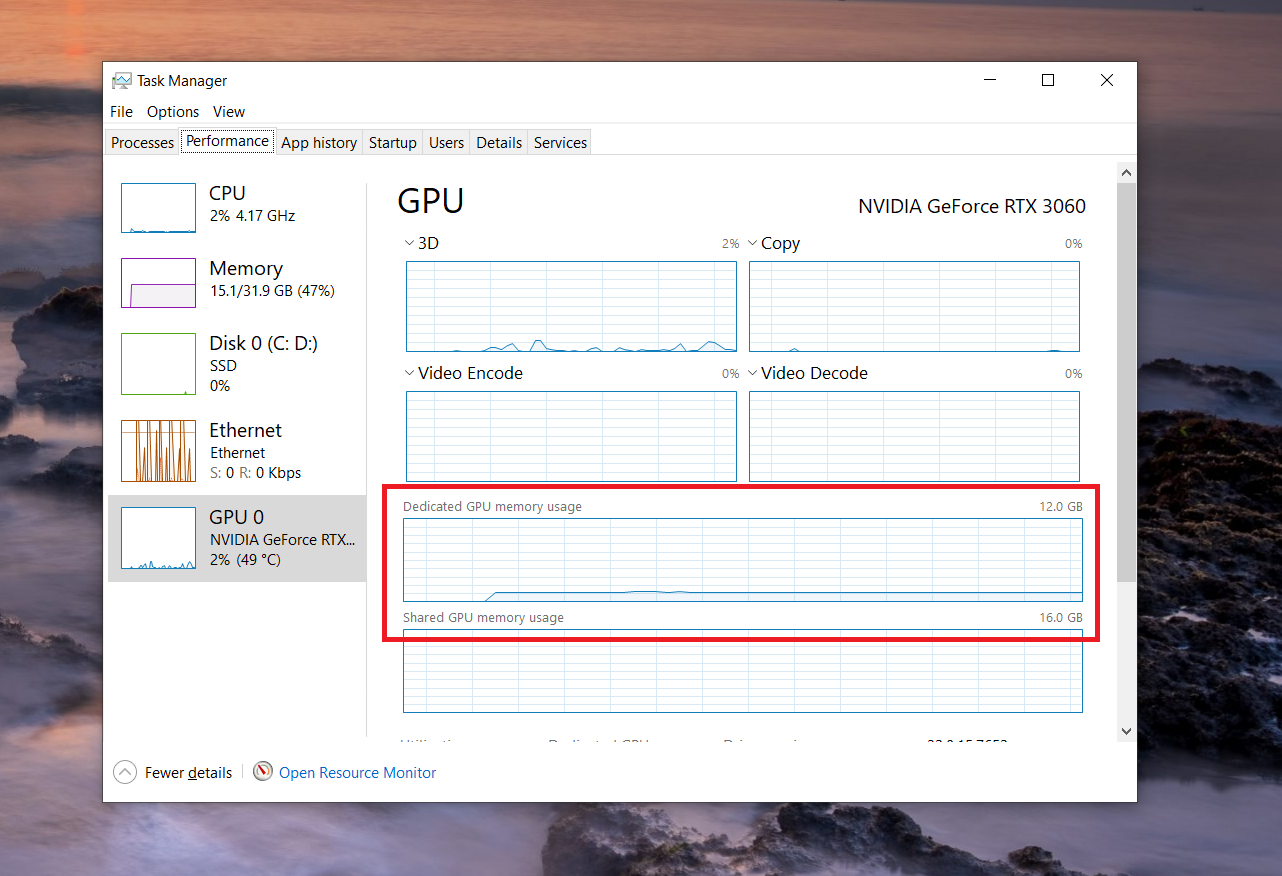
You will see both the total VRAM capacity and the current VRAM usage.
This method is particularly useful if you want to monitor VRAM usage while running games or GPU-heavy applications.
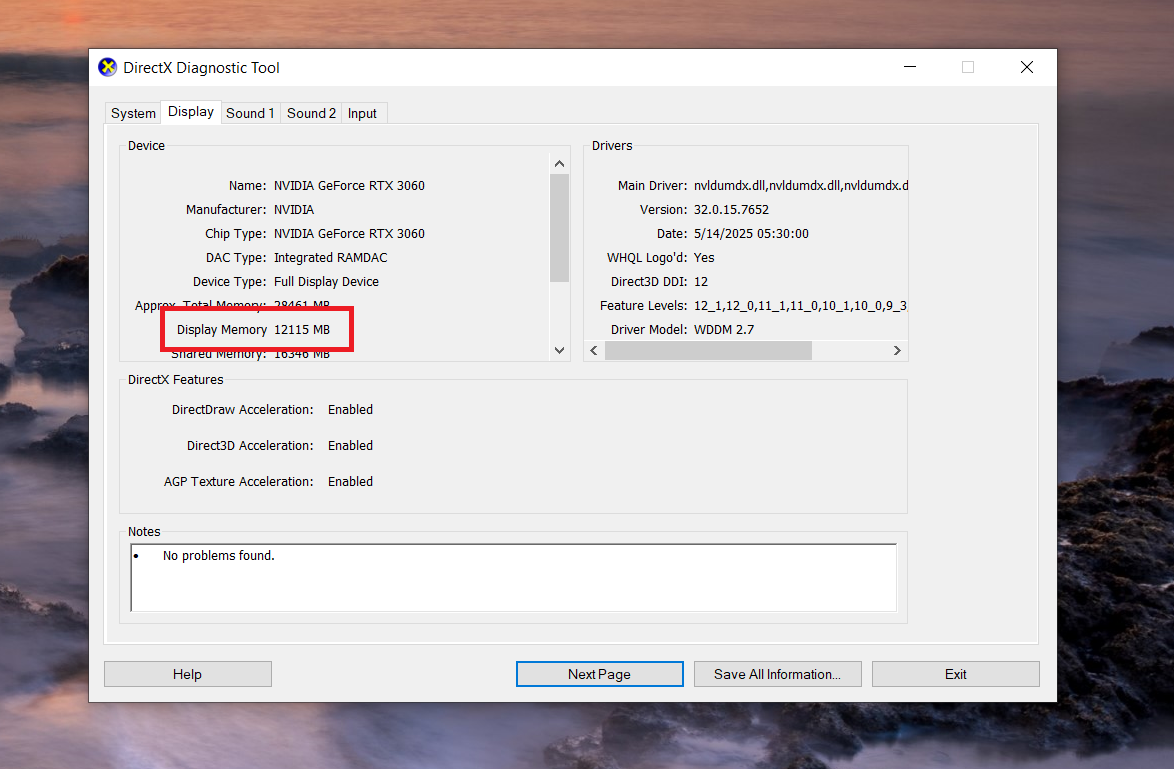
How to Find VRAM Using DirectX Diagnostic Tool?
Windows also includes a built-in tool called DxDiag that reports hardware details. To check VRAM using DxDiag:
- Press Windows + R
- Type dxdiag and press Enter
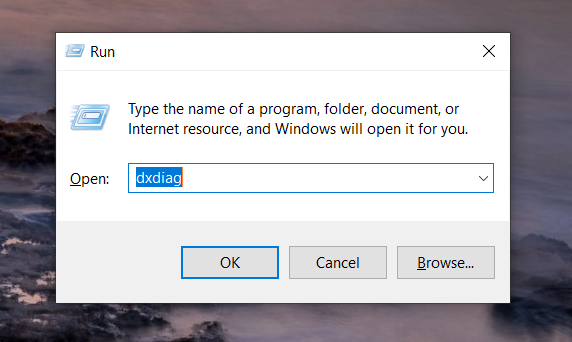
- Open the Display tab
- Look for Display Memory (VRAM)
How to Check VRAM on macOS?
macOS also shows GPU memory information in the system settings. Follow these steps:
- Click the Apple logo in the top left corner
- Select About This Mac
- Open the System Report
- Click Graphics/Displays
However, do keep in mind that Macs use unified memory, which means the GPU shares memory with the system instead of having dedicated VRAM.
How to Check VRAM in NVIDIA Control Panel?
If your system uses an NVIDIA GPU, the NVIDIA Control Panel can also give you detailed hardware information. Follow the steps mentioned below to check VRAM:
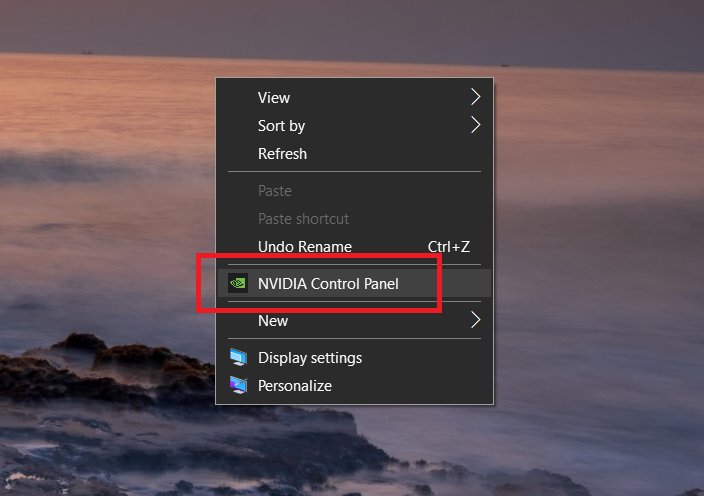
- Right-click on the desktop
- Open NVIDIA Control Panel
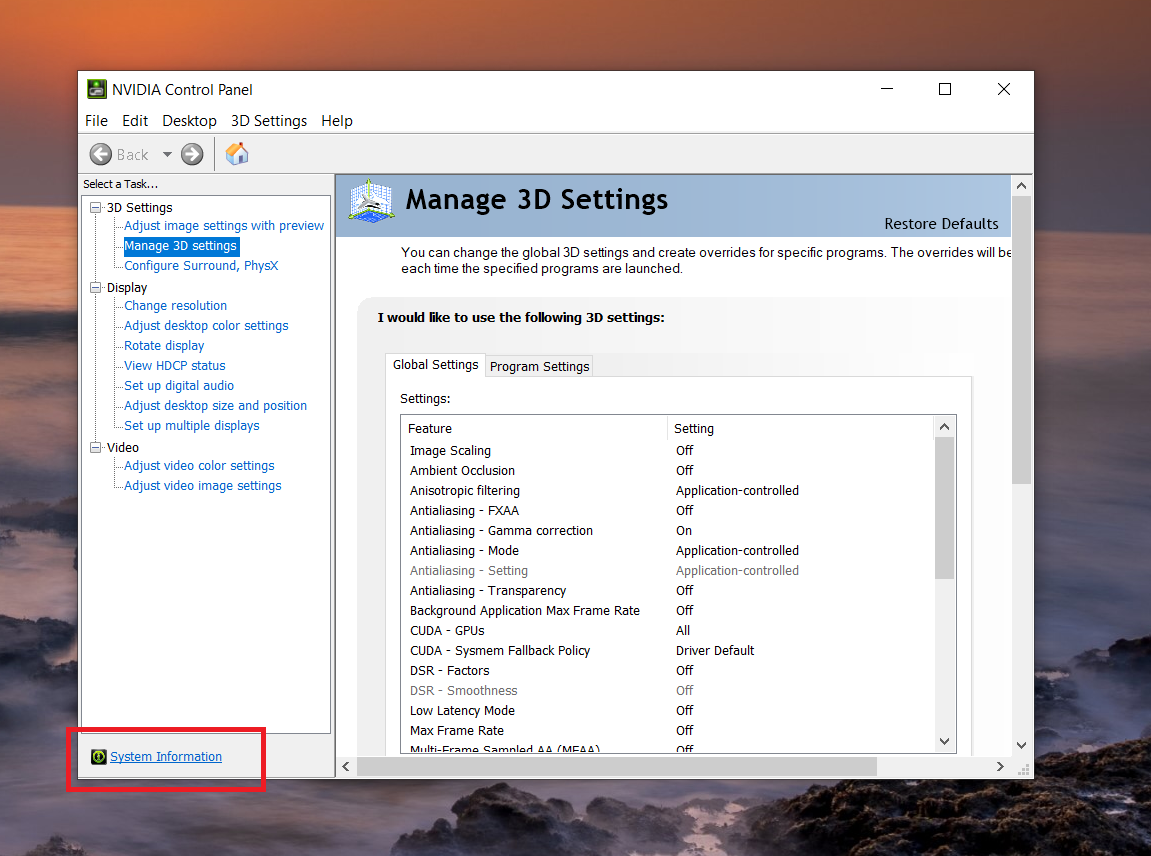
- Click System Information in the bottom corner
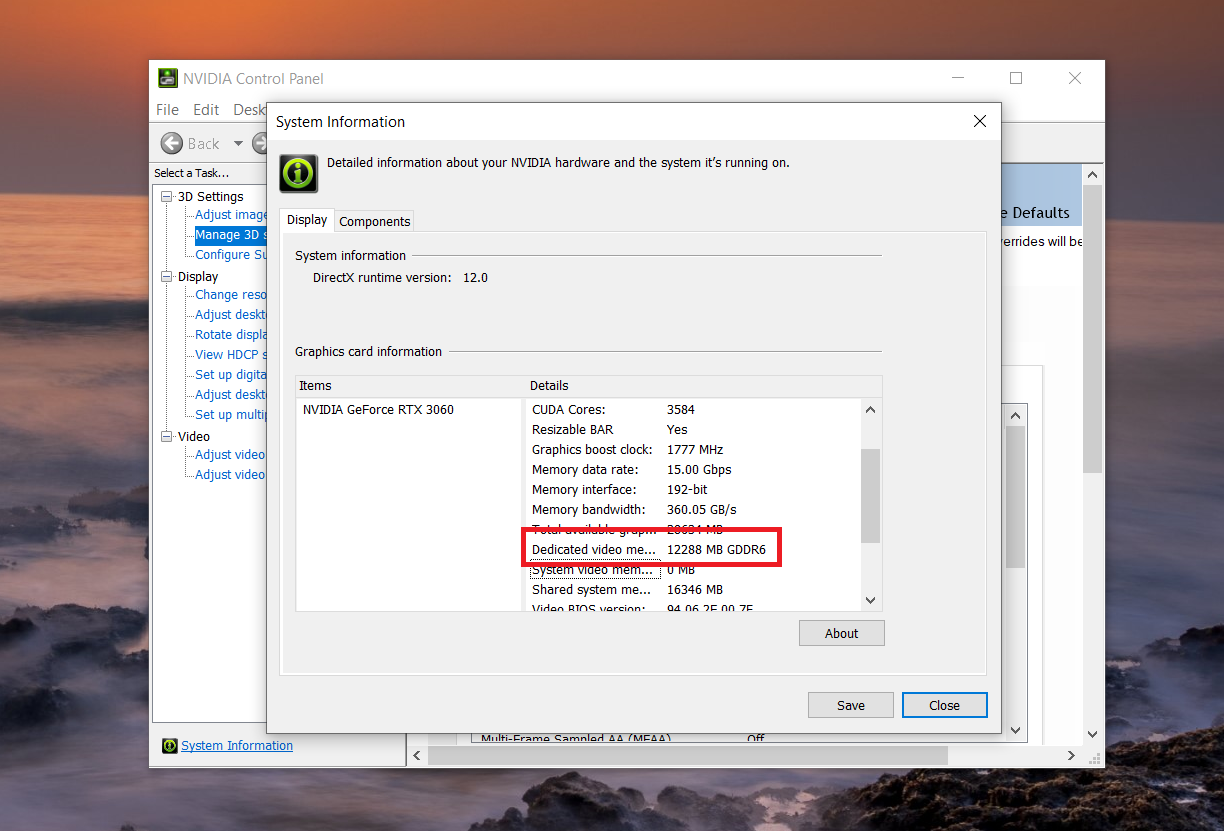
- Look for Dedicated Video Memory
How to Find VRAM in AMD Radeon Software
AMD users can also check VRAM using the Radeon Software utility. Here are the steps you can follow:
- Open AMD Radeon Software
- Click the Settings icon
- Navigate to the System or Hardware section
- Look for Memory Size
How to Increase VRAM?
You cannot physically add more VRAM to GPU. VRAM chips are soldered directly onto the GPU circuit board. So if you have a dedicated graphics card (like an NVIDIA RTX or AMD Radeon card) and you need more memory, the only real solution is to buy a new graphics card which has more VRAM.
If you are using a laptop, upgrading the GPU is usually impossible, meaning you will need to purchase a completely new machine. However, if your computer relies on integrated graphics (where the GPU is built into the CPU rather than being a separate card), you can sometimes increase the amount of system RAM allocated to function as VRAM.
How to Change VRAM Allocation?
If you are using an integrated graphics (like Intel UHD/Iris Xe or AMD Radeon Graphics), then most probably your system has reserved a portion of your regular system RAM to use as VRAM. You can increase this allocation via your computer’s BIOS or UEFI settings.
- Restart your computer and press the BIOS key (usually F2, F10, F12, or Delete) as it boots up.
- Navigate to the Advanced or Configuration menu.
- Look for graphics settings. These might be labeled Graphics Settings, Video Settings, or VGA Share Memory Size.
- Find the option to change the UMA Frame Buffer Size or Pre-Allocated Memory.
- Increase the value to your desired amount (e.g., changing it from 512MB to 2048MB).
- Save your changes and exit the BIOS.
However, do keep in mind that allocating more RAM to your integrated GPU takes away from the overall memory available on your operating system and standard applications.
What GPU Has 24 GB of VRAM?
There are multiple GPUs available that feature 24 GB of VRAM, which includes some popular consumer and professional models from NVIDIA and AMD. Here’s the list:
| GPU Model | Architecture | Memory Type | Primary Use Cases | Notes nvidia+3 |
| RTX 4090 | Ada Lovelace | GDDR6X | Gaming, AI, content creation | Flagship consumer GPU, high power draw |
| RTX 3090 Ti | Ampere | GDDR6X | Gaming, professional workloads | Previous-gen high-end, still available |
| Radeon RX 7900 XTX | RDNA 3 | GDDR6 | Gaming, compute tasks | Strong raster performance |
| RTX A5000 | Ampere | GDDR6 | Workstations, rendering | Pro-grade with enterprise support |
How Much VRAM Do You Need for AI, Gaming, and Video Editing?
Honestly there is no one answer that fits all. As the amount of VRAM you need entrially depends on the software you are running and the resolution of your projects.
If you want to game at a standard 1080p resolution, 8GB of VRAM is the current baseline for majority of the titles these days. But if you want to play AAA games at 1440p with high-resolution textures enabled, you should aim for a card with 12GB to 16GB of VRAM. Apart from that if you are targeting for 4K resolutions and heavy ray-tracing in that case you will need 16GB to 24GB of VRAM to prevent severe texture pop-in and noticeable frame drops.
When it comes to the video editing, handling a basic 1080p timelines will run fine on 4GB to 6GB of VRAM. However, if you are editing 4K footage, adding heavy visual effects, or color grading RAW files in software like DaVinci Resolve or Adobe Premiere Pro, you need a minimum of 8GB.
Local artificial intelligence tasks, especially Large Language Models and image generation tools, are incredibly VRAM-hungry. You need at least 12GB to comfortably run smaller, compressed 8-billion parameter models. If you intend to run larger 30-billion parameter models or want to train models locally without running into constant out-of-memory errors, a GPU with 24GB of VRAM is effectively a hard requirement.
FAQs
No, 20 GB VRAM is not overkill in 2026, it’s ideal for 4K gaming with ray tracing or AI tasks like local LLMs, where AAA titles and models often exceed 16 GB.
Yes, 128 GB RAM modules and kits exist for desktops/workstations, using DDR5 (e.g., 4×32 GB) or server ECC; consumer laptops top out lower around 64 GB.
8 GB VRAM suffices for 1080p gaming but struggles at 1440p/4K or modern AI/video editing, causing stutters, it’s the minimum baseline now, not future-proof.