If you are running Stable Diffusion or any local AI model on your GPU, you are probably leaving free performance on the table. While most guides suggest aggressive tweaks without explaining what really matters for AI workloads. In this article, I am focusing only on settings that affect stability, memory behaviour, and consistent performance for local AI inference and training.
I am assuming you are using an NVIDIA RTX GPU on Windows and running Stable Diffusion locally through tools like Automatic1111 or similar interfaces. The goal here is not to magically double speed, but to remove friction that can cause crashes, VRAM errors, or inconsistent generation times.
Recommended NVIDIA Control Panel Settings for Stable Diffusion
The following settings will keep your GPU clocks stable, avoid unnecessary driver interference, and make sure that the CUDA workloads run without interruptions. However, do keep in mind that all the changes should be made under Manage 3D settings in the NVIDIA Control Panel.
- Power Management Mode: Prefer maximum performance
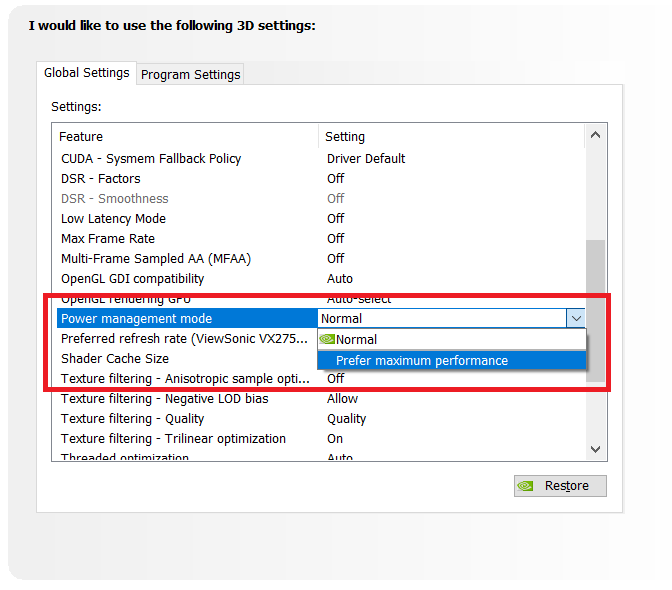
This is the most important setting for Stable Diffusion. Local AI workloads often appear “light” to the driver because they do not push high frame rates. As a result, the GPU may downclock mid-generation. Forcing maximum performance keeps clocks stable during long inference runs and batch generations.
- CUDA – GPUs: All
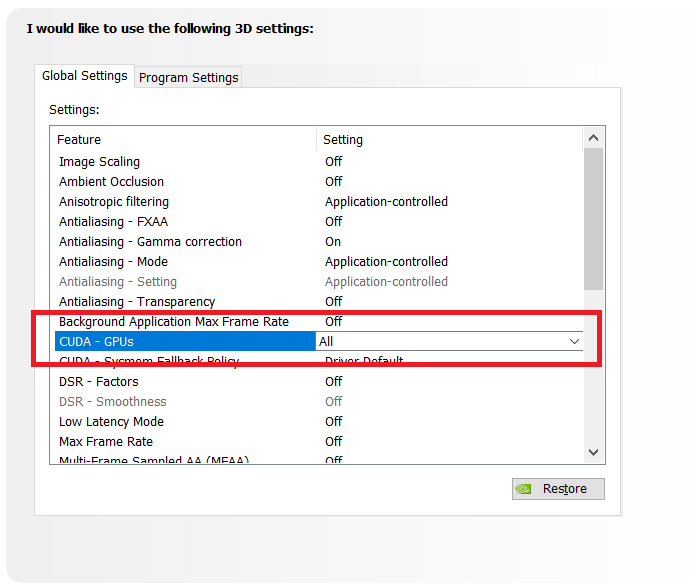
It will make sure that Stable Diffusion can fully access your NVIDIA GPU via CUDA. Disabling GPUs here can cause silent performance drops or force fallback behaviour in some setups, especially when using multiple GPUs or virtual environments.
- Low Latency Mode: Off
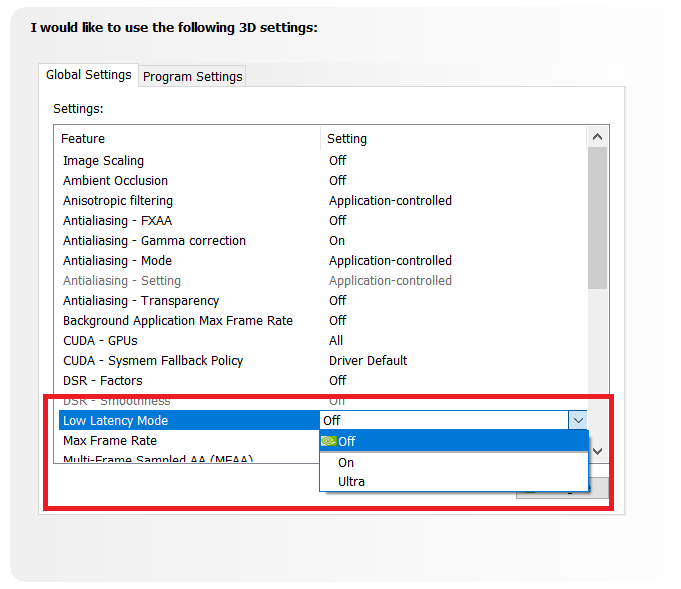
It is designed for games that need fast frame delivery. Stable Diffusion does not operate on a real-time rendering pipeline, and enabling this setting can interfere with normal CUDA scheduling without offering any benefit.
- Shader Cache Size: Driver Default
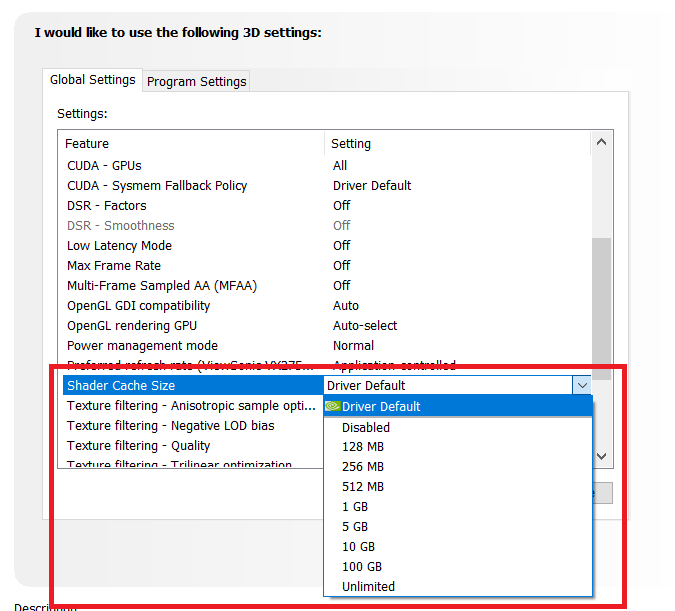
Stable Diffusion does not benefit from manually increasing the shader cache size. The CUDA kernels used by AI workloads are managed differently from game shaders, and forcing cache behavior can sometimes lead to unnecessary disk usage.
- Threaded Optimization: Auto
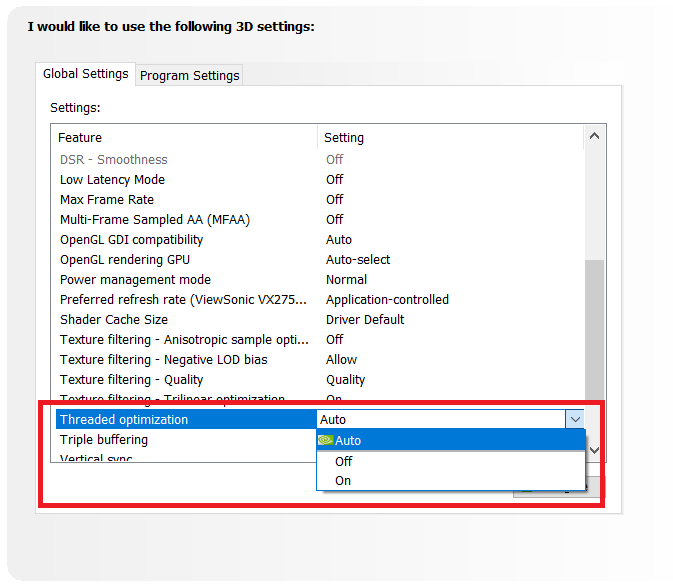
Leaving this on Auto allows the NVIDIA driver to handle CPU-to-GPU task scheduling correctly. Forcing it on or off has no proven benefit for PyTorch-based workloads and can create unpredictable behavior on some systems.
- Texture Filtering Quality: High Quality
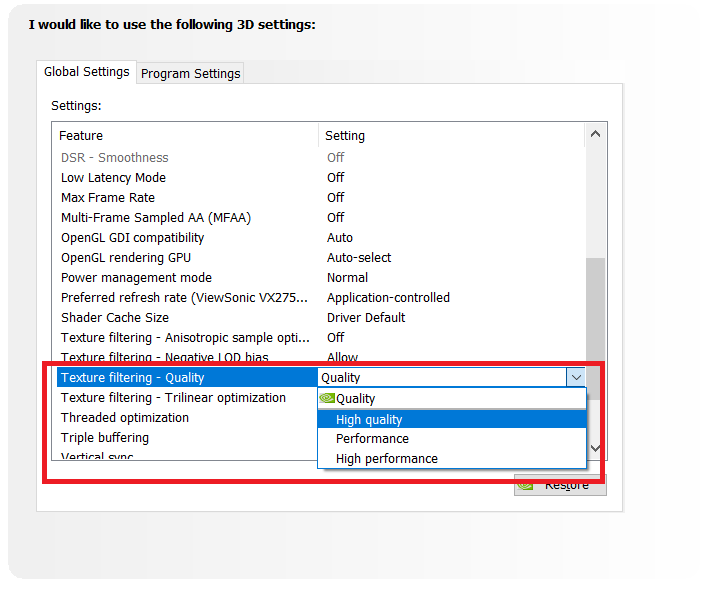
This setting does not impact Stable Diffusion output directly, but keeping it on High Quality avoids driver-side shortcuts that are meant for real-time rendering. It ensures the driver does not apply aggressive optimizations, which are intended for games.
- Vertical Sync: Off
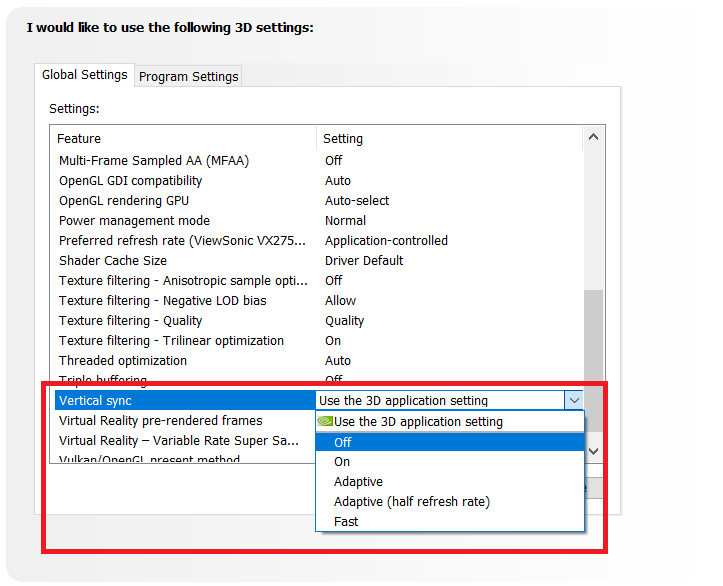
VSync only affects frame presentation to a display. Since Stable Diffusion generates images off-screen and saves them directly to disk, enabling VSync provides no benefit and should be kept off.
Settings You Should NOT Change
The biggest mistake people make is when they try to optimize Stable Diffusion like a game. Vertical sync, triple buffering, maximum frame rate, and G-SYNC have zero relevance here. These settings control how frames are displayed, not how tensors are processed.
Another setting people often touch is Image Sharpening. This is a post-processing feature applied to rendered frames. Stable Diffusion generates images in memory and saves them directly to disk, so driver-level sharpening does not matter here.
Furthermore, antialiasing settings, including FXAA and transparency AA, should also be ignored. They are not applied to compute workloads, and changing them only adds noise to your configuration. Along with that, DSR factors and scaling options should remain disabled. They increase GPU overhead for rendered output, which is irrelevant when your workload is image generation and not a real-time display.
Global vs Program Settings: What’s Better?
For most users, global settings are enough. Stable Diffusion runs as a Python process, and depending on your launcher, the executable name can change. This makes program-specific tuning unreliable unless you are very precise.
If you do want to use Program Settings, the only setting worth overriding is Power Management Mode. Assign it to the Python executable or the specific UI launcher you use. Everything else should inherit global defaults.
Do These Settings Improve Speed or Just Stability?
No, these tweaks will not make a huge difference in speed. So if you are expecting faster steps per second or shorter generation times purely from tweaking settings in the NVIDIA Control Panel, you will be disappointed. In that case, you will get disappointed.
What they do improve is stability. You are less likely to see sudden slowdowns mid-generation, random CUDA out-of-memory errors caused by clock drops, or driver timeouts during long batch runs.
Does This Apply to Other Local AI Tools?
Yes, and this is where the advice actually scales. These settings apply to most CUDA-based local AI tools, including text-generation models, audio generation, and embedding pipelines.
If a tool relies on PyTorch or TensorFlow with CUDA acceleration, the same principles apply. Stable clocks, predictable power delivery, and avoiding graphics-only tweaks are universally beneficial.
This also applies to tools like ComfyUI, Fooocus, and other Stable Diffusion frontends, since they all sit on the same CUDA stack.
FAQs
Yes. These settings apply to all RTX 30-series and 40-series GPUs. The GPU model changes performance, not driver behavior.
No. NVIDIA Control Panel settings only improve driver-level stability. You still need in-app optimizations like xformers or attention slicing.
No. VRAM is fixed by hardware. These settings only help prevent instability that can trigger memory-related crashes.