If your screen suddenly freezes, starts flickering, or games begin crashing without warning, the issue is often linked to your GPU or its drivers. In many cases, you don’t need to replace hardware or do a full system reset. A simple GPU reset can fix the problem. This guide explains how to reset your GPU properly, including quick shortcuts, driver-level fixes, and advanced methods.
What Does Reset GPU Mean?
Resetting a GPU does not mean wiping the hardware. In most cases, you are restarting the graphics subsystem or reinstalling the driver software, not the physical component itself.
GPU vs Graphics Driver, What Are You Actually Resetting?
The GPU is the physical hardware inside your system, while the graphics driver is the software that allows your operating system to communicate with it. When you “reset” a GPU, you are usually restarting or reinstalling the driver, not the hardware itself.
How Windows Automatically Resets GPU?
Windows has a built-in system called Timeout Detection and Recovery (TDR). If the GPU stops responding for a few seconds, Windows automatically resets the graphics driver to prevent a system crash. This is why you may sometimes see your screen flicker briefly and then recover.
When Should You Reset Your GPU?
You don’t need to reset your GPU regularly. It is mainly a troubleshooting step when something stops working as expected. If you notice any of the issues below, resetting the graphics driver is usually a good first step before trying more advanced fixes.
Screen Freezing or Stuttering
If your system becomes unresponsive, or you notice frequent stutters while switching apps, watching videos, or gaming, it may indicate that the graphics driver is stuck or not responding properly. A quick reset can help restore smooth performance.
Black Screen or Flickering Display
A sudden black screen, random flickering, or display turning off and on repeatedly often points to a temporary GPU driver crash. Resetting the driver can reinitialise the display output without restarting the entire system.
“Display Driver Stopped Responding” Error
This is a common Windows error that appears when the GPU takes too long to process tasks. In such cases, resetting the driver helps bring it back to a stable state without causing a full system crash.
GPU Not Detected or Not Working Properly
If your system fails to recognise the GPU, or it shows errors in Device Manager, it could be due to a driver issue. Resetting or reinstalling the driver can help the system detect and use the GPU correctly again.
Quickest Way to Reset GPU on Windows
The fastest way to address GPU display issues is by using a keyboard shortcut.
- Press Windows + Ctrl + Shift + B together
- Your screen will briefly go black
- You may hear a beep sound
- The display will return within a few seconds
What Happens When You Use This Shortcut
This shortcut resets the graphics subsystem, specifically, it discards the desktop’s surface buffer and tells the Desktop Window Manager (DWM) to rebuild the visuals from scratch. It does not directly reinstall or restart the graphics driver, though a driver reset may occur as a side effect in some situations. Your apps remain open and the display recovers within a couple of seconds. It is useful when your screen freezes or goes blank but the system is otherwise still running. Note: this shortcut may not work in Remote Desktop sessions.
How to Reset GPU Without Restarting Your PC
If the shortcut does not work, you can manually reset the GPU without rebooting your system.
Restart GPU via Device Manager
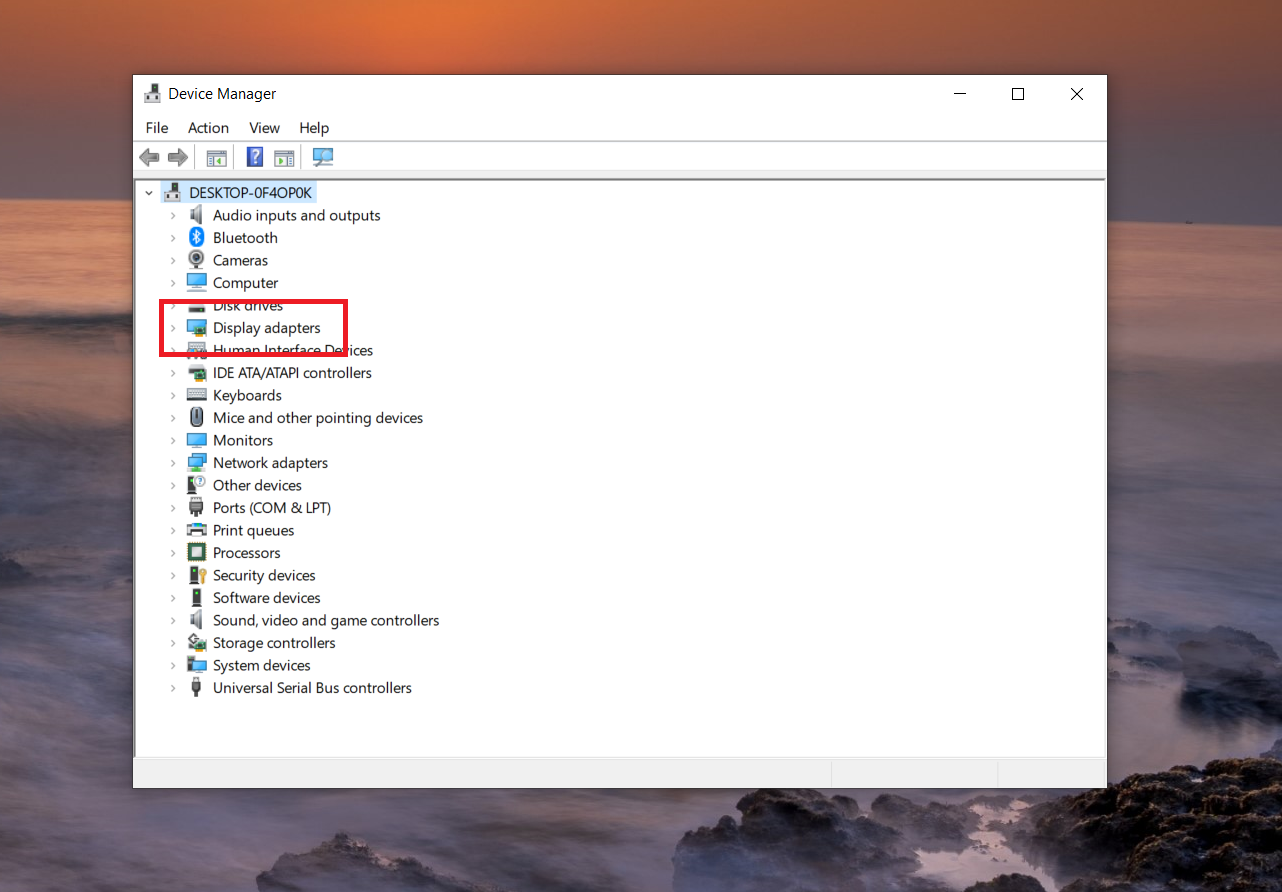
- Open Device Manager
- Expand “Display adapters”
- Right-click your GPU and click “Disable device”
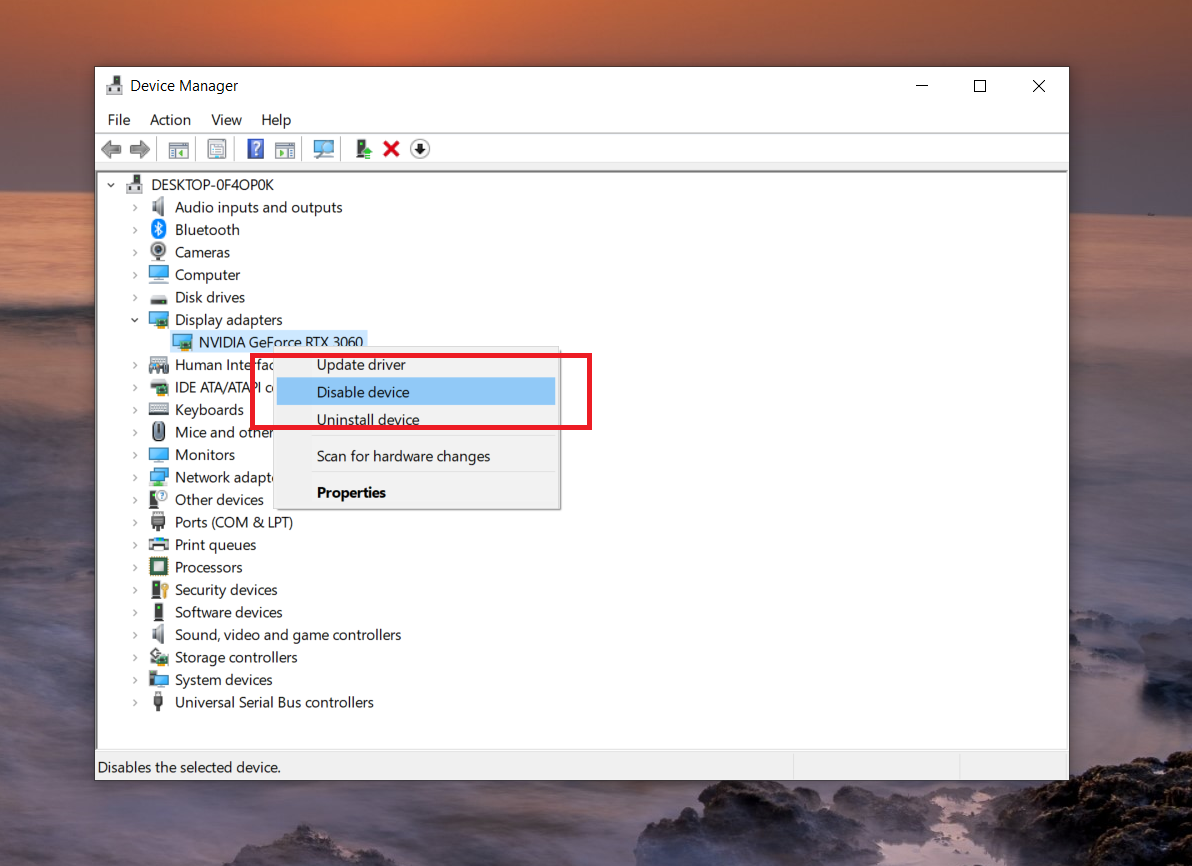
- Wait 5 to 10 seconds
- Right-click again and click “Enable device”
This process forces Windows to reload the graphics driver and is a more direct method than the keyboard shortcut.
How to Reset GPU Drivers
If problems persist, reinstalling the driver is a more reliable solution.
- Open Device Manager
- Expand “Display adapters”
- Right-click your GPU
- Select “Uninstall device”
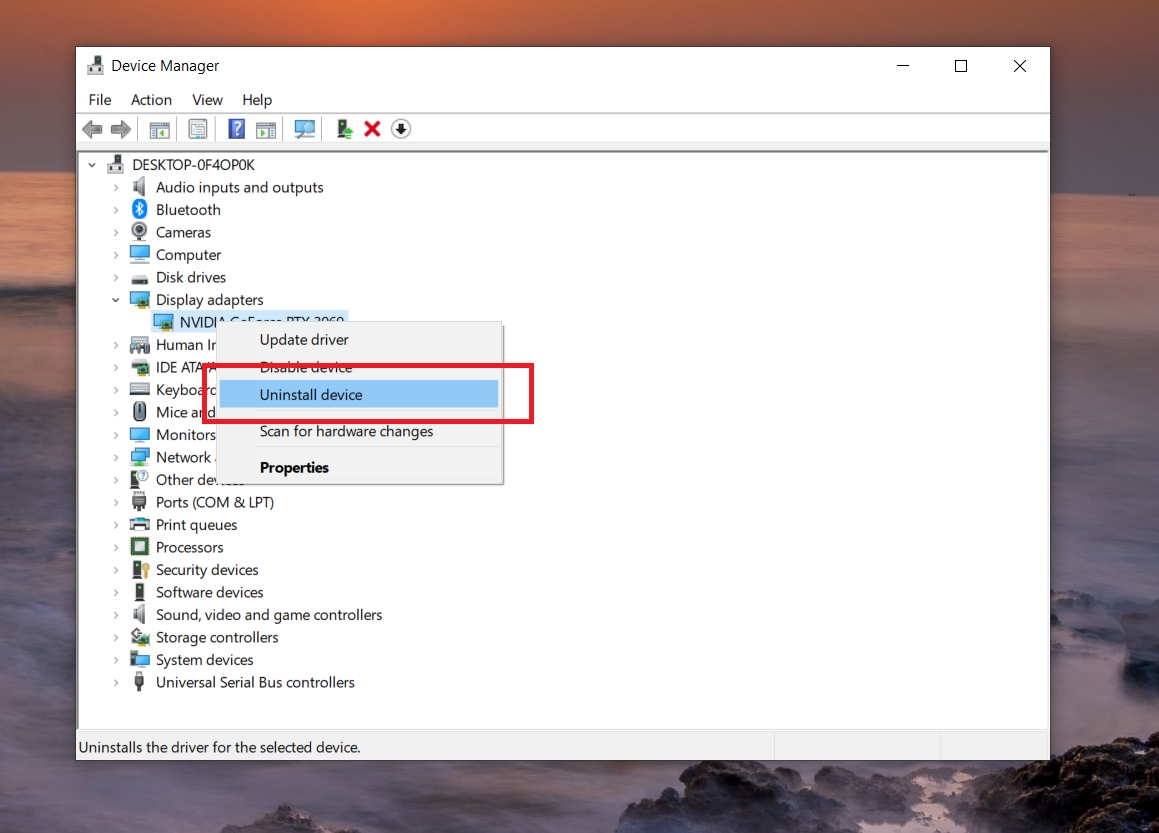
- Confirm the action
After uninstalling, restart your PC. Windows will automatically reinstall a basic display driver. For best results, download the latest driver from your GPU manufacturer’s website (NVIDIA, AMD, or Intel). During installation, choose the clean installation option if available to remove old settings and ensure a fresh start.
How to Reset GPU Settings (NVIDIA, AMD, Intel)
Sometimes the issue is caused by incorrect settings rather than the driver itself.
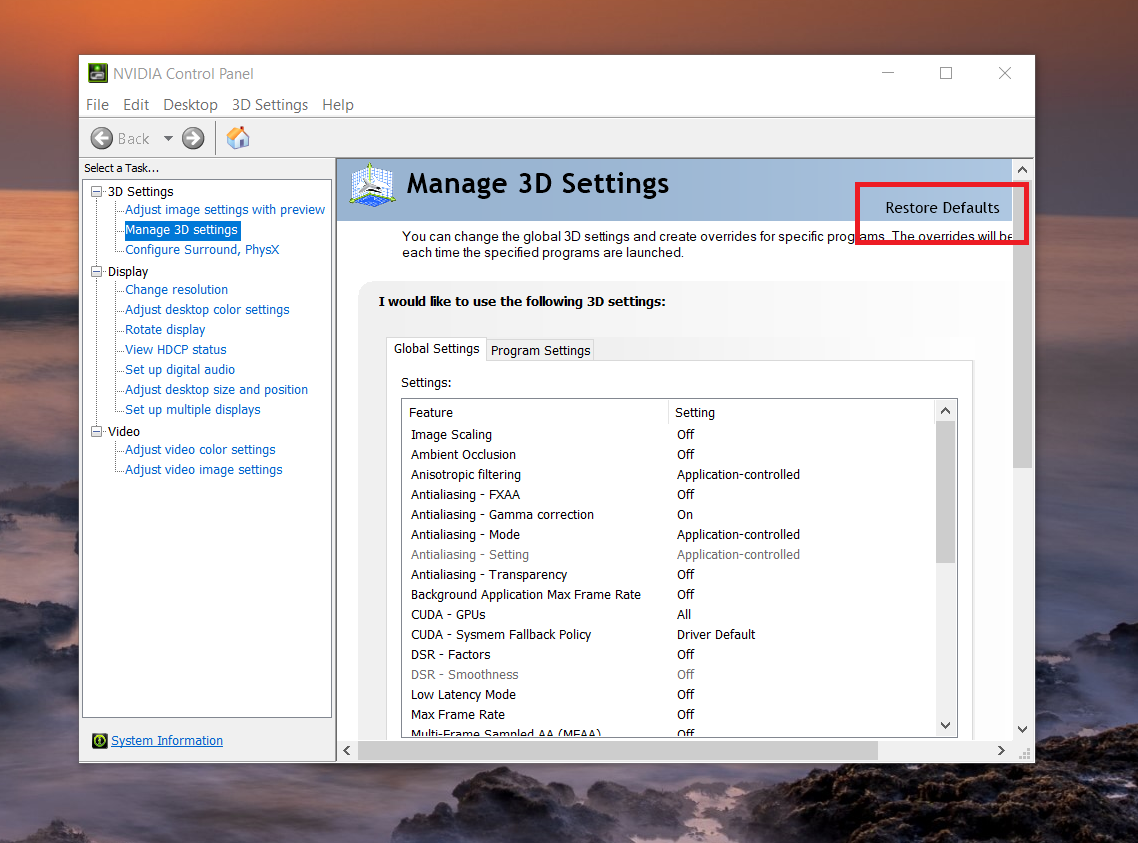
- NVIDIA Control Panel Settings: Open the NVIDIA Control Panel, go to “Manage 3D Settings,” and select “Restore Defaults.” This resets all custom configurations.
- AMD Radeon Software Settings: Open AMD Software: Adrenalin Edition, search for “Factory Reset” in the settings, and click Perform Reset. Important: AMD has confirmed that using the Factory Reset option during driver installation, not from within the settings panel, can in rare cases corrupt Windows if a Windows Update runs simultaneously. To avoid this, ensure Windows Update is fully applied or paused before installing AMD drivers, and leave the Factory Reset checkbox unchecked during driver installation.
- Intel Graphics Settings: Open Intel Graphics Command Center and reset settings to default from the preferences section.
Common GPU Problems That Resetting Can Fix
Here are some common issues where resetting the graphics driver can help restore normal behaviour without requiring deeper troubleshooting.
- Screen flickering, random black screens, or the display turning off briefly. These issues are usually caused by temporary driver crashes or communication problems between the GPU and the display. Resetting the driver helps reinitialise the connection and stabilise the output.
- System freezing or lag during normal use or multitasking. If your system becomes unresponsive while switching apps, browsing, or playing videos, the GPU driver may be stuck. A reset can quickly recover the system without needing a full restart.
- Games crashing, stuttering, or sudden performance drops. Unexpected crashes or inconsistent performance during gaming are often linked to unstable GPU drivers. Resetting can help bring performance back to normal.
- “Display driver stopped responding and has recovered” error. This error appears when the GPU takes too long to complete a task. Resetting the driver helps it recover and prevents further interruptions.
- Visual glitches, artifacts, or distorted graphics on screen. Problems like unusual colours, lines, or broken textures are often caused by driver instability. Resetting can clear these temporary visual issues.
- External monitor not detected or display not switching properly. Issues with multiple displays are commonly tied to driver conflicts. Resetting the GPU helps the system detect and configure displays correctly again.
What to Do If Resetting GPU Doesn’t Fix the Issue
If resetting the GPU does not resolve the problem, the issue may not be limited to the graphics driver. In such cases, it is important to check if your GPU drivers are updated to the latest version, as outdated drivers can cause compatibility issues. You should also ensure that the GPU is properly connected and receiving enough power, especially in desktop systems.
Overheating is another common cause, so monitoring GPU temperatures during usage can help identify thermal issues. Additionally, certain applications or background processes can conflict with the GPU, so checking for software-related problems or recent system changes can help narrow down the root cause.
Is Resetting GPU Safe?
Resetting a GPU is generally safe and does not affect your personal data or files, as it only restarts or refreshes the graphics subsystem or driver. It is a common troubleshooting step used to fix temporary display or performance issues without making permanent changes to the system.
However, if you find yourself needing to reset the GPU frequently, it could indicate a deeper problem such as outdated drivers, overheating, or hardware instability. In such cases, it is better to investigate the root cause instead of relying on repeated resets.
FAQs
Yes, resetting a GPU driver in Windows using standard methods is safe and does not damage hardware or delete files. It briefly resets the graphics subsystem or driver to fix glitches like flickering or crashes. Save your work first, as the screen may flicker briefly.
Press Windows + Ctrl + Shift + B simultaneously. Your screen will flicker or go black briefly, followed by a beep, as Windows resets the graphics subsystem. It discards the desktop surface buffer and instructs the Desktop Window Manager (DWM) to rebuild the display. This works for NVIDIA, AMD, and Intel GPUs without restarting the PC. Note that this shortcut resets the graphics subsystem, not the driver itself, though a driver reset may occur as a side effect.
Yes, you can refresh your GPU by using the Windows + Ctrl + Shift + B shortcut, which resets the graphics subsystem and can clear temporary glitches. For a deeper refresh, you can disable and re-enable the GPU through Device Manager. Both methods work without a full reboot.
Use Windows + Ctrl + Shift + B for a quick graphics subsystem reset. Alternatively, in Device Manager, disable then re-enable the GPU under Display adapters, this gives you more direct control and confirms the device status before and after. For advanced users, PowerShell can also be used as an administrator: run Get-PnpDevice -Class Display to find the device, then disable and re-enable it.