The curiosity around running AI models locally is increasing day by day. Developers and AI enthusiasts today are more interested in running AI models directly on their own machines instead of cloud for better privacy, lower costs, and more control. And one tool that has quickly become popular in this space is Ollama. It allows you to download and run AI models directly on your computer with just giving a few commands.
That’s why in this article i have decided to talk about what Ollama is, how to install and use it, where it stores models on your system, and how to fix common issues if it fails to open. So without wasting any more time lets get started:
What is Ollama?
Ollama is a local LLM runtime that lets you download and run AI models directly on your computer. So instead of sending prompts over the internet to OpenAI or Anthropic, Ollama processes everything locally using your machine’s chips like CPU and GPU.
It acts like an engine for AI, which makes it easy to run powerful open-weight models like Meta’s Llama 3, Mistral, Gemma, and DeepSeek without needing complex Python environments or cloud infrastructure.
So if your hardware is up to take the task, (basically if you have a capable NVIDIA GPU). Though do keep in mind that Ollama can run on CPU as well, but performance improves with GPU acceleration.
How to Install and Use Ollama?
Getting started with Ollama is quite simple. Here is a step-by-step guide to running your first local model:
- Download the Installer: Visit the official Ollama website and download the version for your operating system.
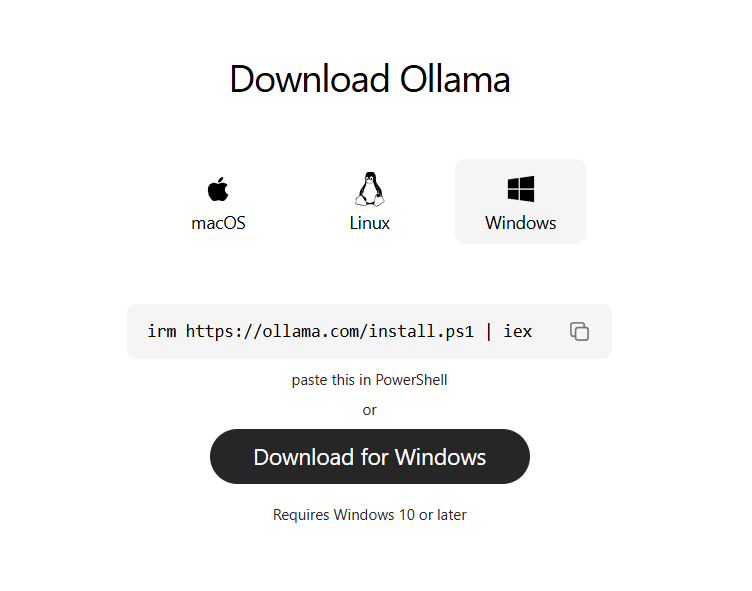
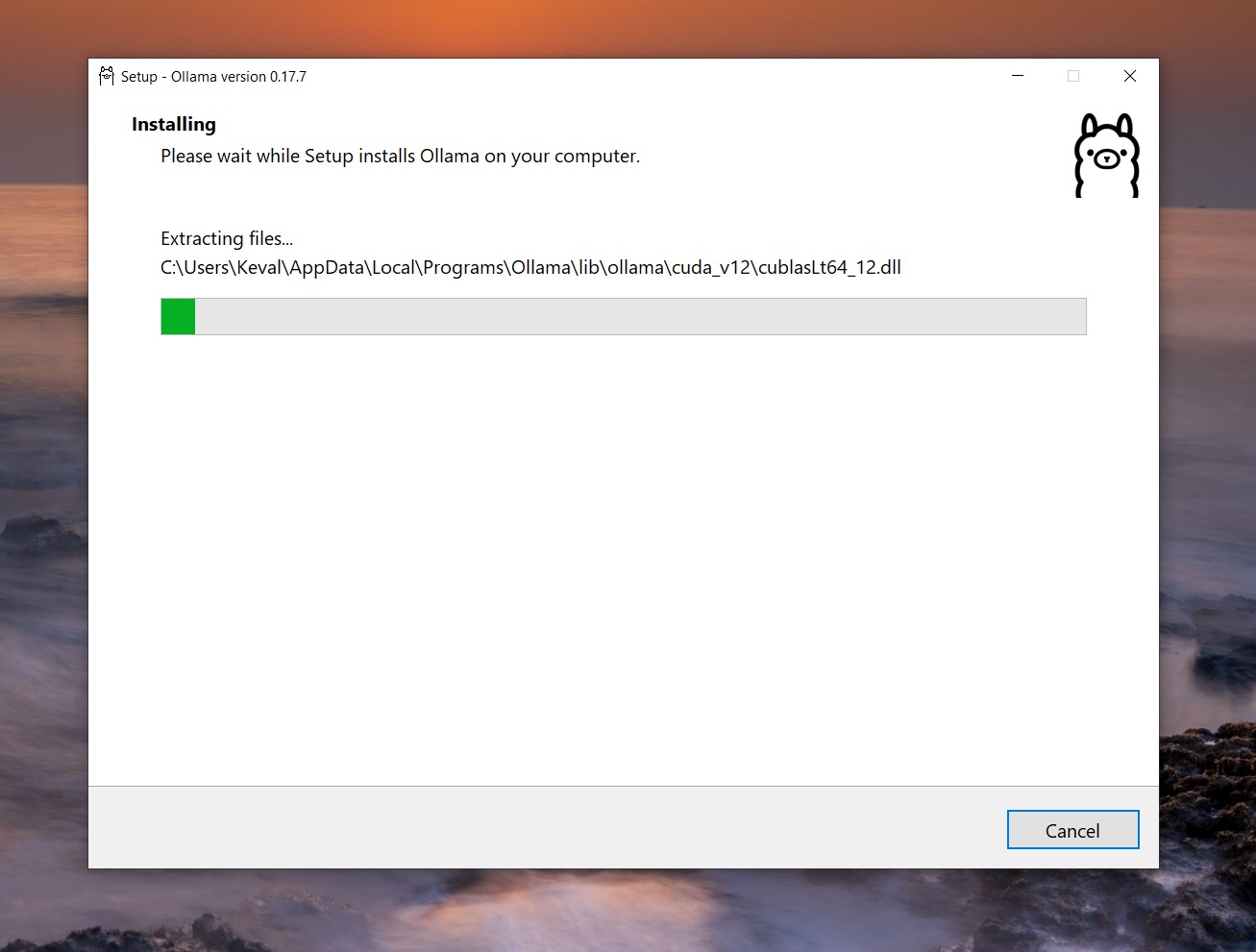
- Run the Setup: Execute the downloaded file. On Mac or Windows, this is a standard installation wizard. On Linux, it typically involves running a single install script provided on the site.
- Open Your Terminal: Once installed, open your Command Prompt (Windows), Terminal (macOS), or shell (Linux).
- Pull and Run a Model: Type the command ollama run llama3 and hit Enter. Ollama will automatically download the Llama 3 model weights and start an interactive chat session right in your terminal.
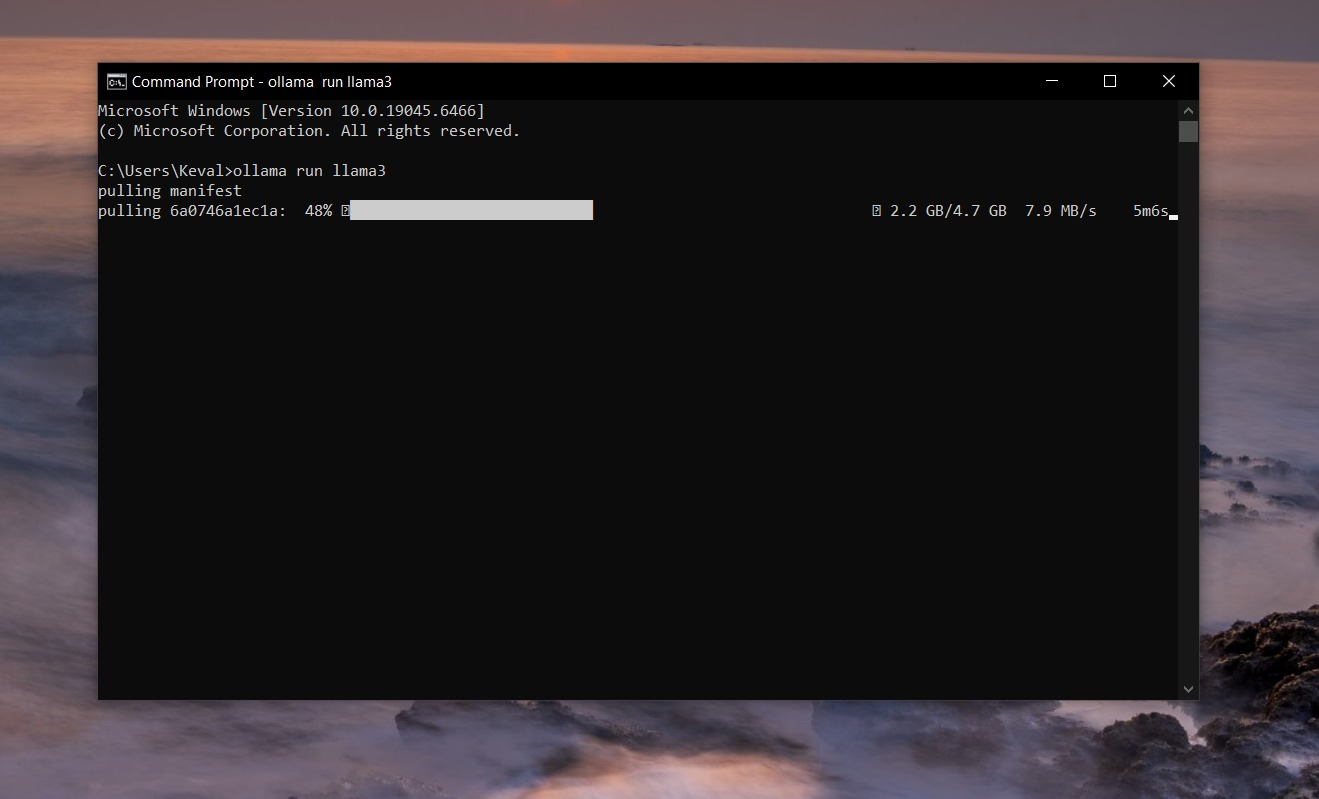
- Start Chatting: You can now type your prompts and get instant, locally generated responses. To exit the session, simply type /bye.
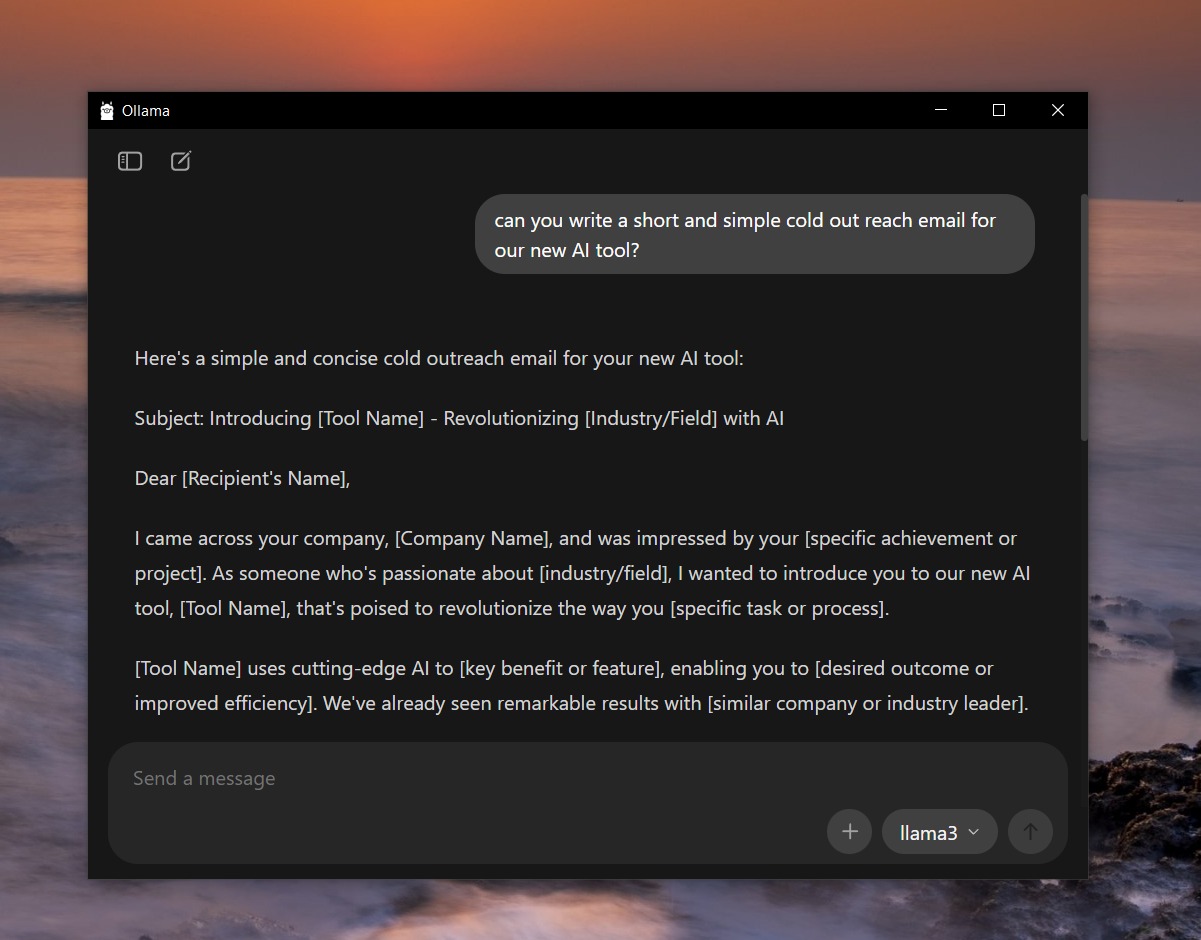
How to Connect to Local Ollama?
Beyond the terminal, Ollama acts as a background service that exposes a REST API. By default, the Ollama API runs on http://localhost:11434.
This means you can connect custom applications, automation platforms, or graphical user interfaces to your local models. For example, if you are building an automated workflow in platforms like n8n, you can simply point the HTTP request node to http://localhost:11434/api/generate, send a JSON payload containing your prompt, and receive the AI’s response directly into your pipeline.
Ollama provides an OpenAI-compatible API, allowing many applications built for OpenAI to work with minimal changes.
Where Ollama Stores Models?
As you experiment and download more models, you might notice your storage space shrinking. Model weights are large files, often requiring several gigabytes each. So depending on your operating system, Ollama stores these model files in the following default directory paths:
- macOS: ~/.ollama/models
- Windows: C:\Users\<User>\.ollama\models
- Linux: ~/.ollama/models
Ollama Not Opening? Here Are Fixes
While Ollama is generally stable, you might run into connection errors or find that the app refuses to execute commands. Here are the top three common reasons and how to fix them:
1. Port Conflicts (Port 11434 is in use) Ollama runs on port 11434 by default. If another application on your network stack is using this port, Ollama will fail to start.
- The Fix: On Windows, open Command Prompt as Administrator and run netstat -ano | findstr :11434 to find the conflicting Process ID (PID), then terminate it using the Task Manager. On Mac or Linux, use lsof -i :11434 to identify the blocking process and use the kill command to stop it.
2. Existing Background Processes Sometimes, a previous instance of Ollama gets hung up in the background, preventing a new window or terminal command from executing properly. You will typically see an error stating: “Error: could not connect to ollama app, is it running?”
- The Fix: You need to completely kill the hanging service. On macOS or Linux, run pkill ollama in your terminal, then restart the service manually with ollama serve. On Windows, locate the Ollama icon in the system tray, right-click to select “Quit Ollama,” and then relaunch the application from your Start menu.
3. Host IP Binding Issues (Docker/Network Errors) If you are trying to connect to Ollama via a Docker container or from another device on your local network, Ollama might be binding strictly to localhost (127.0.0.1), effectively refusing external requests.
- The Fix: You must tell Ollama to accept connections from other network interfaces. Set the environment variable OLLAMA_HOST=0.0.0.0 before starting the server. If you are using systemd on Linux, add Environment=”OLLAMA_HOST=0.0.0.0″ to your service file, run sudo systemctl daemon-reload, and restart the service.
However, do keep in mind that exposing Ollama externally without authentication can be risky.
FAQs
Ollama is an open-source tool for running large language models (LLMs) locally on your machine. It prioritizes data privacy, low latency, and offline access by keeping everything on-device.
No, Ollama is not like ChatGPT. Ollama runs open LLMs locally on your hardware for privacy and control, while ChatGPT is a cloud-based service from OpenAI.
No, Ollama is free to use, but it is not fully open source.
Ollama is a platform to run LLMs locally, including Meta’s Llama models. Llama refers to the specific open-source models from Meta, which Ollama supports alongside others.
Yes, Ollama is completely free for personal and team use with no costs beyond your hardware.
Llama (from Meta) is open-source, efficient for local runs, and text-focused in base form, while GPT (from OpenAI) is proprietary, cloud-optimized, larger, and often multimodal.
Ollama supports multimodal models like LLaVA for image understanding, but it does not generate images like Stable Diffusion or DALL-E.
Not natively, as Ollama targets desktops/servers. On Android, you can run it via Termux or connect phone apps to a remote Ollama server; iOS support is limited to clients.