Doing a factory reset on your Meta AI glasses will bring the device to its original settings. It will delete all your data, like photos or videos that you have captured. So make sure to geta backup of your data before performing the factory reset. Here’s the steup by step guide to factory resetting the Meta AI glasses:
How to Factory Reset Your Ray-Ban Meta and Oakley Meta glasses
- Fold both arms of the glasses
- Press the capture button 5 times until the LED turns orange
- Press and hold the capture button until the LED starts flashing
- Release the button and wait
- The LED will turn white, then blue, and then switch off
- This means the reset is done
How to Factory Reset Your Meta Ray-Ban Display Glasses
- Fold both arms of your glasses
- Press the capture button five times
- Now press and hold the capture button
- Keep holding the capture button until the notification light blinks white and orange,
- Release the button
How to Factory Reset the Charging Case of Your Meta AI Glasses
- Open the case
- Plug in and unplug the USB-C cable 3 times within 11 seconds
- The LED will blink white
- This means the reset is successful
How to Unpair and Remove Meta AI Glasses Using the Meta View App
Removing your glasses from the app is a important if you plan to sell the device or pair it with a new Meta account. However, do keep in mind that this alone will not delete your photos or videos; it only removes the connection from your phone.
- Open the Meta View App on your smartphone
- Select your glasses
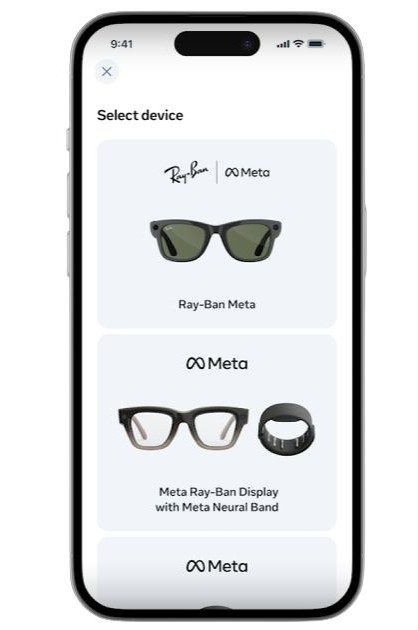
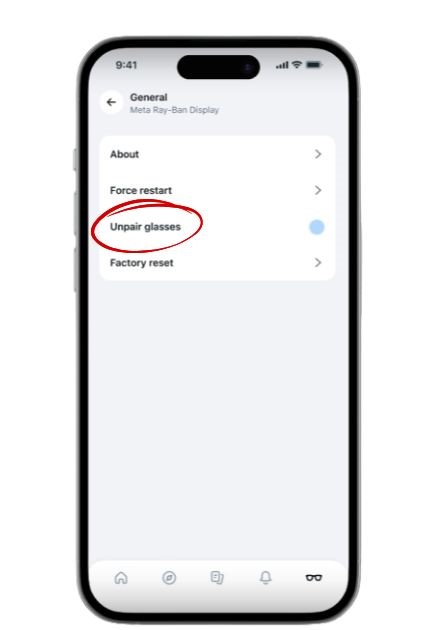
- Tap on the Settings, and go to General
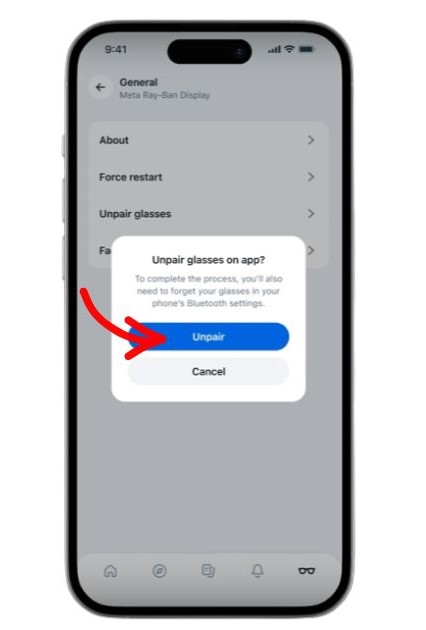
- Select Unpair Glasses option
- Confirm the action
Troubleshooting Common Reset Issues
If in case the LED does not respond while doing the manual reset, make sure that there is enough battery life in the glasses, and the right temple is fully closed. After checking that repeat the above-mentioned method again.
Difference Between a Force Restart and a Factory Reset
| Aspect | Force Restart | Factory Reset m |
| Purpose | Fixes temporary glitches without data loss. | Erases all data, settings, and captures for a full wipe. |
| Data Impact | No data deleted; settings preserved. | All user data, photos, videos, and pairings removed. |
| Post-Action | Glasses reboot and reconnect automatically. | Unpair Bluetooth, re-pair via Meta View app, re-setup. |
| When to Use | Minor freezes, connectivity hiccups. | Persistent errors, selling device, or full refresh. |
FAQs
To factory reset Xiaomi Smart Audio Glasses, place them on the charger and press and hold the touch area on both sides of the temples for 7 seconds until you hear a prompt tone.
To delete your Meta AI glasses account, you must delete your primary Meta account through the Meta Accounts Center; unpairing the glasses only removes them from the app while keeping your account active.
To connect Meta glasses without a factory reset, place the glasses in the charging case and hold the button on the back for 5 seconds until the LED pulses blue to enter pairing mode. Note: This only works for the same Meta account; a factory reset is required if you are switching to a different account.